Getting Started
Welcome to Mycorr, the collaborative data platform designed to improve your productivity and bring structure to your data workflows. If you are someone who works with a lot of data, Mycorr will be a time-saver by centralizing your data and transforming your traditional spreadsheets into powerful, structured, and shareable resources.
This guide will introduce you to the core concepts and features that make Mycorr unique.
Why Choose Mycorr?
-
Real-time collaboration and synchronization
Work together with other users in real time. See data changes instantly as they happen.
-
Data versioning
Track every change, create checkpoints, and roll back to previous versions when needed. Our versioning system ensures you never lose important data and can always track your history.
-
Access Management
Control who can view, edit, or share your resources. Define granular permissions for individuals, spaces and organizations, ensuring your data stays secure and only accessible to the right people.
-
Integration with external datasources
Quickly import data from external datasources and keep your data in sync with external sources.
Ready to Get Started ?
- Learn about Account Management to get access to Mycorr.
- Explore the Resources section for detailed guides on available resources and how to interact with them.
- Explore different Data Sources you can bring data from into Mycorr.
- Check out Data Management to get into the details of different ways to manage your data.
- Visit API Access to learn about accessing your data from external applications.
Account Management
Your account is who you are in Mycorr. It carries your identity, the organizations you belong to, and everything you own.
Creating an account
Two ways in:
- Continue with Google — the fastest route, and no password to keep.
- Email and password — enter your full name, email address and a password.
A password sign-up sends a verification email. Open it and follow the link before signing in; until you do, the account exists but is not yet yours to use.
If you were invited to an organization or to a resource, follow the link in the invitation. It brings you to the same sign-up, and your access is waiting when you arrive.
Signing up with Google and signing up with a password create the same kind of account. What differs is how you prove it is you.
Terms and privacy
Before you can use the app, you accept the Terms of Service and the Privacy Policy. When either is updated you are asked again, and the screen says plainly that the terms have changed rather than presenting them as new.
Signing in
Use whichever method you signed up with.
If you forgot a password, use Forgot password on the sign-in screen. A reset link is sent to your address; it lets you set a new password and sign in again.
Your personal organization
Every account gets one Personal organization at sign-up. It holds exactly one person — you — and it is where your own models and tables live.
It has its own plan and its own storage allowance, separate from any company organization you belong to. See Organizations and Billing.
Deleting your account
Account deletion is deliberate, reversible for a window, and it tells you what will happen before you confirm.
- Open settings and choose to delete your account.
- Read the summary, which is calculated for your account specifically — it names the number of tables involved.
- Confirm.
You then have 48 hours. During that window you can still sign in and cancel, and everything comes back.
What happens
- Your personal organization, every space in it and every model you own go to the Trash for 48 hours.
- After that, your models and their tables are deleted for good.
- Tables that other people imported stay copyable for a further 10 days, so their work is not destroyed without warning, and then go too.
- Models in organization spaces you manage are not affected — they belong to the space, not to you.
- If you are the only admin of a team, another member is promoted automatically.
- Teams you own with no other members are permanently deleted.
Your saved connections, personal access tokens and stored credentials are removed with the account.
Two things that stop the deletion
You are the only owner of an organization. Deletion is refused outright, because it would leave that organization with no owner and no way to recover one. Hand ownership to someone else first; the dialog lists the organizations and links to each one's settings.
You pay for an organization that stays behind. This does not block the deletion, but you are warned, because deleting your account does not cancel those subscriptions — they keep charging your card until someone replaces it. Replace the card while you are still an owner, or cancel the plan if the organization is winding down too. See when a payment fails for what the people who stay behind will see.
Signing up again afterwards
A deleted address can be used to register again. The new account is genuinely new: it does not recover the old account's data, models or access, all of which were deleted. What you get back is the address, not the history.
Resources
Mycorr's strength lies in its structured and shareable resources made available to its users. It allows them to organize and collaborate on their data with ease without worrying about conflicts or inconsistencies.
To help you get started, the following section provides an overview of what resources defined in Mycorr and how they are structured inside your workspace. Understanding the structure will make it easier for you to crunch the data.
Start by diving into our Resources Structure for a detailed breakdown.
Structure
In Mycorr, all data is organized in Models and Tables within them. Think of this as databases and tables in traditional systems.
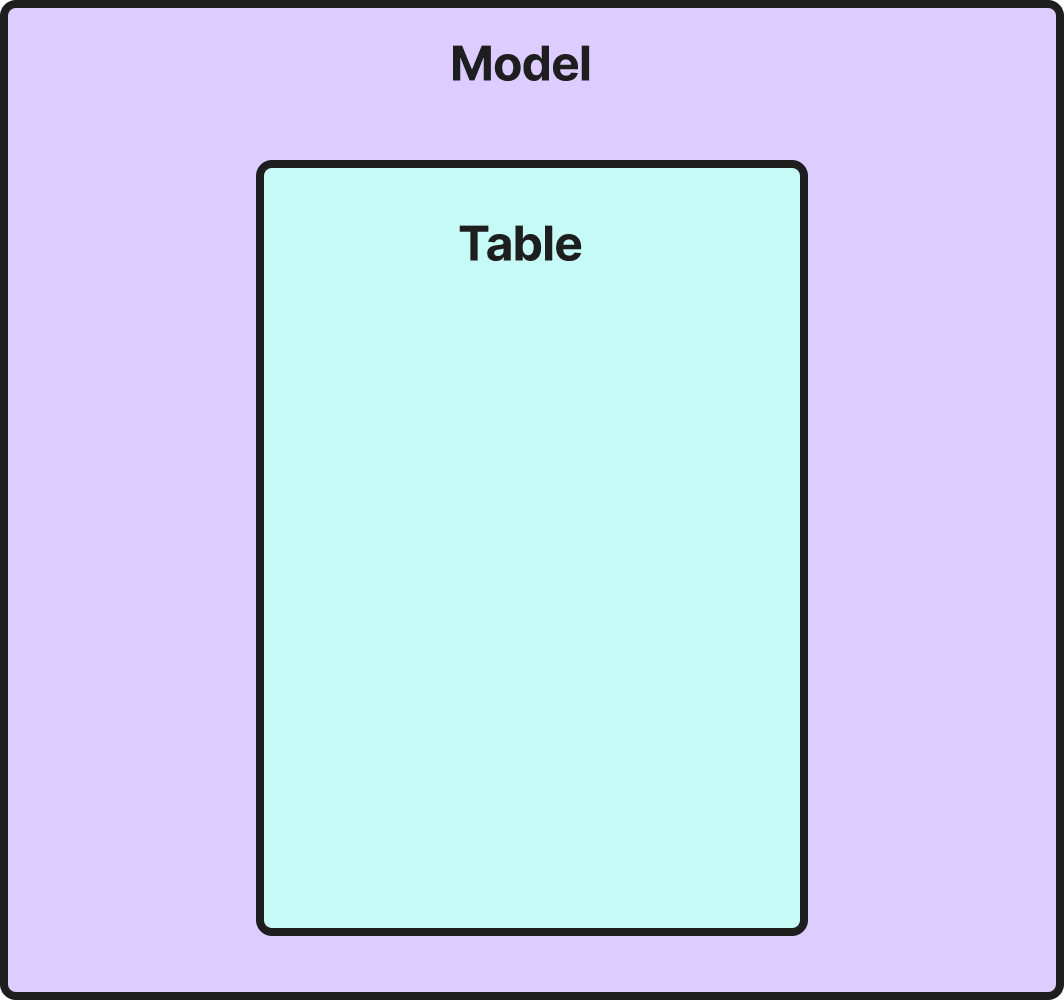
Tables always have a parent model, from which they can be edited. In that model, they exist in their latest state. When tables are shared to other users, they can import the tables into their own models. When a table is imported into a model, it can only be visualized, but not edited.
Learn more about Sharing of Tables.
Models
Think of Models as folders that hold data together in a single common space. A Model contains one or more Tables, displayed on a shared Canvas where you can collaborate with others and see real-time data changes as they happen.
Every Model lives in a space. The space's managers own the Model, which is the highest level of access to it, and the space's other members reach it as their role allows.
After the Model is created, you can add Tables to it and start working on your data. You can also share the Model with others, allowing them to collaborate on the same data.
Learn all about Sharing of Models.
Tables
Our Tables are just like tables in a database, that you can create, edit and manage within a Model.
A Table is accessed and visualized through Table Views, of which a Table can have as many as you like. For example, you can create one Table Views that are filtered or sorted differently.
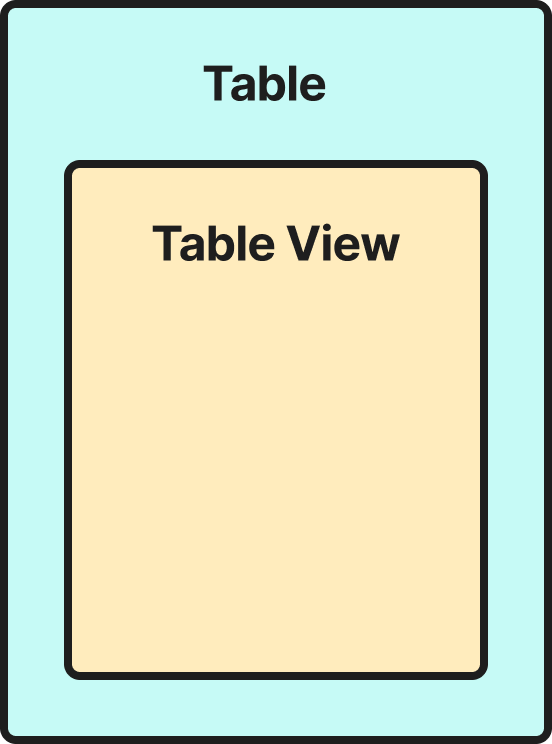
Within a Table View, you can:
- Remove columns
- Add Columns
- Remove Rows
- Add Rows
- Filter Data
- Update Data
Any data changes made within a Table View are persisted to the main Table to ensure data consistency between views. Learn more about Data Management.
Column Types
Every column in a table has a type, which decides what it can hold, how it sorts, how it is displayed, and which filter operators apply to it.
The types
| Type | Holds |
|---|---|
| Text | Any string |
| Number | Integers and decimals, in several widths |
| Boolean | True or false |
| Date | A calendar date, with no time |
| Date & time | A moment, stored in UTC |
| Duration | A length of time |
| JSON | A structured value |
| UUID | An identifier |
| List | Several text values in one cell |
| Categorical | One of a defined set of values |
| Attachment | Files on the row |
Numbers carry a width — Int32, Int64, Float32, Float64 and so on — shown beside the type as Number · Int32. The width decides the range a column can hold, which is why narrowing one is not always safe.
Decimal columns keep their precision and scale. A column defined as ten digits with two decimal places stays that; it is part of the type, not a display setting. Number formatting, including how many decimal places are shown, is separate and does not change what is stored.
Date & time columns carry a precision — seconds, microseconds or nanoseconds — and are stored in UTC. The display timezone is a view setting, shown as Display timezone: UTC (default).
Changing a column's type
You can cast a column to another type from the column menu. Three things can happen, and the app decides which before you commit:
| What it means | |
|---|---|
| Safe | The cast always works on well-formed data — Int32 to Int64, say |
| Lossy | It may empty rows it cannot convert, or fail outright, depending on what is actually in the column |
| Disallowed | Not offered at all |
Lossy casts are offered but flagged. Text to Number is the common one: it works for the rows that hold numbers and cannot work for the rest. Narrowing a number — Int64 down to Int32 — is lossy for the same reason: values outside the smaller range have nowhere to go.
Disallowed casts are hidden rather than refused with an error, so you never pick one. They fall into two groups: conversions with no meaning (boolean to timestamp), and ones that should go through text first rather than directly.
Two types are locked and never cast:
- Attachment, because a cast would fall through to text and silently detach every file while reporting success.
- Categorical, except to a List, which is the one conversion that preserves what the column meant.
Where types come from
When you upload a CSV or paste data, types are inferred from the values. Text is the fallback: anything that does not parse consistently as something narrower stays text, which is lossless and always castable later.
Tables read through a connection carry the types the source defines.
Categorical Columns
A categorical column restricts its cells to a set of labels you define — statuses, regions, priorities. Instead of typing Active and hoping everyone else spells it the same way, the column holds the list and people pick from it.
Single and multiple
A categorical column can be either:
- Single-select — one label per cell.
- Multi-select — several labels per cell.
Cells render as coloured chips. Where several labels do not fit the cell width, the extras collapse into a +N badge you can open.
Defining the categories
Each category has a label and optionally a colour. You can add, rename, recolour, reorder and remove them from the column.
Three things behave in a way worth knowing:
Removing a category is blocked while a filter uses it. If any view filters on that value, the removal is refused rather than silently emptying the filter. Clear the filter first.
Category edits are not undoable. Adding, renaming and removing categories sit outside undo and redo. Renaming a category affects every cell holding it at once, and an undo that silently reverted a rename across a whole table is worse than doing it again deliberately.
Concurrent edits are caught. If someone else changed the category set while you were editing it, your change is rejected rather than applied over theirs — which would empty cells pointing at categories that no longer mean what they did.
Filtering
A categorical column offers its values in a picker rather than a free-text box, so you filter on what the column can actually hold.
For a multi-select column, a filter tests membership — "the value occurs in the list" — so a cell tagged EU, Priority matches a filter for EU.
Casting
Categorical is one of the two locked types. The only conversion offered is to a List, which keeps what the cell meant: the labels become list values.
Casting to text or anything else is not offered. See column types.
Attachments
An attachment column holds files on a row — a contract beside the vendor, a scan beside the invoice.
Adding the column
Open the table's item menu and choose Add attachment column.
You will not find Attachment in the ordinary column type picker, and the menu entry greys out once the table has one. That is because a table may have exactly one attachment column. Files are heavy and their permissions are answered per table; one column keeps that answerable.
The column's type is locked once created. It cannot be cast to text or anything else — a cast would fall through to text and silently detach every file on every row while reporting success.
Working with files
A cell holds a list of files, not one.
- Add files by uploading into the cell. Several can be in flight at once.
- Enter commits the list as one value. An unchanged list commits nothing.
- Escape cancels, aborting any uploads still in flight.
- Each file offers Download, Open in a new tab, a copy-link action, and Delete.
Files are capped at 100 MB each.
Detaching is an ordinary edit. Removing a file from a cell is just committing the list without it — the row changes, and the file itself is untouched wherever else it is used.
Deleting a file
Deleting the file itself is different from detaching it, and the dialog shows you the reach before you confirm:
Contracts (3 cells) · 1 table you cannot see
The same file can sit in many cells and in tables you have no access to, so the count tells you what a delete would take with it — including, honestly, that some of it is invisible to you.
What attachments cost
Attachment bytes count against the storage of the organization that owns the table — see usage and limits.
Downloading one costs egress, charged to the organization you are working in. A file leaving Mycorr costs exactly what a CSV of the same size costs.
A file is only reclaimed once nothing references it anywhere, and only after a later sweep confirms that is still true — so restoring a table from the Trash never comes back missing its files.
Limits worth knowing
A table with attachments cannot be published to the catalog. Catalog data is unbilled, so its files would stay billed to the source organization while being reachable by everyone.
AI assistants see file names and change nothing. Through the MCP server an agent can read the names of attached files, and that is all — it cannot upload, detach, clear a cell, delete the column, or cast it. A cleared attachment cell is a detach, and detaching every file on a row is not something to leave to an agent.
If you want an assistant to help with an attached document, ask it for the row; the canvas link it hands back opens for you and not for it.
Table Links
A link records that a column in one table refers to a column in another — an order's customer_id pointing at a customer's id.
Links are what let you expand from one table into a related one on the canvas, and they are how the shape of your data is described rather than just its contents.
Creating one
- Select a table on the canvas and open Links.
- Choose Add table link.
- Pick the column on each side. The app spots likely matches — "Looks like a match. Hit the link button to add your first pair."
- Add the pair.
Composite links — where the relationship needs more than one column on each side — are built by adding more pairs to the same link.
For a link into a list column, a single membership pair is the whole link: "A membership pair (value in list) makes the whole link — no further pairs."
The link direction can be swapped, and clicking again resets it.
Both tables must be in the model
You can only link tables that are both present in the model you are working in. If the other end lives elsewhere, the app says so: "Other endpoint lives in a different model. Import that table here to use this link."
Import the table first, then make the link.
Who may create and delete a link
Authority comes from the pair of tables, never from one of them. That is the rule to hold on to: a link is a fact about two tables, so no single table's permissions can settle it.
The floor, for every link: you must be able to see both tables. If you cannot, you cannot create the link, delete it, or even know it exists — and the refusal deliberately tells you nothing about the table you cannot see, not even what kind it is.
Above that floor:
| The pair | Who may create or delete |
|---|---|
| Two ordinary tables | Anyone who can edit either one |
| An ordinary table and a catalog table | Anyone who can edit the ordinary side |
| Two catalog tables | A catalog manager |
Importing a table gives you no link rights over it. Being able to read a published catalog table does not let you rewrite the catalog's link graph — that belongs to whoever edits the table, not to everyone who imported it.
Link health
Link health checks whether a link's values actually line up — whether the referring values are found on the other side.
It becomes available once the table is released; before that the app says "Link health is available once the table is released."
Links and ownership transfers
Moving a table to another organization can sever links, and you are told how many before you confirm.
A link is severed when the destination organization would not grant access back to the other endpoint — in other words, when the other end stays behind in an organization that can no longer see the table. Links whose other end is in the destination organization, in the catalog, or in a third organization survive, and a link from a table to itself travels with it.
The count shown in the confirmation is exactly the set that will be removed.
Deleting
Delete table link removes it, and the confirmation says it cannot be undone. The tables and their data are untouched — only the relationship between them goes.
Sharing and Permissions
Everything in Mycorr is private until it is shared. Access comes from two places:
- Where the model lives. A model sits in a space inside an organization. The space's members can reach its models as their role allows, without anyone sharing them one by one.
- Direct shares. You can also share a single model or a single table with a person.
Who you can share with
- In your personal organization, you can share with anyone by email. If they don't have a Mycorr account yet, they get an invitation.
- In any other organization, you can only share with that organization's members. An address outside it is refused with "Not a member of …". Add the person to the organization first.
- In a Sealed space, models can't be shared one by one at all. Access comes from the space alone.
People you share with get a notification in Mycorr and an email with a link.
What you can share
| You give | They can | |
|---|---|---|
| A model | Collaborator or Viewer | Work in the model, or look at it |
| A table | Can Import or Can Share | Import the table's release into their own models, and with Can Share, share it on |
Sharing a model lets people into your work in progress. Sharing a table only ever gives them what you have released.
Sharing Models
Sharing a model lets people into it: they see its canvas and its tables as they are now, including work that hasn't been released.
Who owns a model
A model belongs to its space. Every manager of that space is an owner of the model. Owners decide who else gets in, and only owners can share the model or remove access. Creating a model doesn't make you its sole owner: the space's managers own it with you, or instead of you if you aren't one.
Roles
| Role | Can |
|---|---|
| Collaborator | Edit the model and its tables, create checkpoints and releases |
| Viewer | Open the model and read its tables, without changing anything |
Neither role can share the model further. People also get these roles from the space itself, without a direct share.
Share a model
Open the model's details, choose Share, enter one or more email addresses and pick a role. See who you can share with.
A model in a Sealed space can't be shared one by one. Give people a role on the space instead.
Revoke access
An owner can remove anyone they shared the model with, at any time.
If that person had imported tables from this model into their own models, those imports become read-only stubs: the table stays on their canvas, marked as no longer accessible, but its rows are gone. There is no option to let them keep the data.
Access someone has through the space is managed on the space, not here.
Sharing Tables
Sharing a table lets someone use it in their own models without opening yours. They import it, and from then on they read its release.
Release first
People you share a table with only ever get its released versions, never your work in progress.
So a table needs a release before it can be shared. If it has none, the share dialog says so and offers Add a release: give the release a name, such as "v1.0", and the current version is released. You can then share.
When you release a newer version later, the people who imported it see Sync to latest release on their copy and take it when they are ready.
Permissions
| Permission | They can |
|---|---|
| Can Import | Import the table into their own models |
| Can Share | Import it, and share it on with others. Whoever they share with gets Can Import. |
Only the table's owners, the owners of its model, can give Can Share or remove access.
Some tables can't be shared: tables a recipe writes, and tables in a Sealed space.
Revoke access
An owner can remove anyone from the table's share list at any time.
Any import they made becomes a read-only stub: it stays on their canvas, marked as no longer accessible, but its rows are gone.
Asking for access
If you can see a table but aren't allowed to import it, for example as a viewer of its model, dragging it onto your canvas sends its owners a request instead. You'll see "Requested access … pending approval", and the table arrives once an owner shares it with you.
Moving a table to another model
A table you own can be moved into another model you own: choose Transfer Ownership from its menu, which opens Move table. The picker asks for the organization first, shows which links would be cut, and won't move a table out of its connection's organization or into the catalog when the rules don't allow it.
Data Sources
Open Import inside a model to bring data in. There are three kinds of source:
| Source | What it brings in | Editable here? |
|---|---|---|
| Upload | CSV, TSV, Parquet or Excel files from your computer | Yes, the table is yours |
| Mycorr | Tables from your other models, datasets, recipes and the public catalog | No, you read the owner's release |
| Connections | Tables from your databases, cloud buckets and Google Sheets | No, the source owns the data; sync to update |
You can also paste data or drop a file straight onto the canvas, and create an empty table to type into.
Tables you upload, paste or create are owned by the model: anyone who can edit the model can edit them. Imported and connected tables are read-only, because their data lives somewhere else.
Table Import
Importing reuses a table that lives in another model, without copying it. Open Import → Mycorr to see what you can bring in, then drag a table onto the canvas.
What you can import
The list is grouped by where things come from, such as This organization, your Personal organization, and Shared with me. Inside each you'll find:
- Models and their tables
- Datasets: curated sets of related tables. Dragging one imports its members.
- Recipes: saved queries. Dragging one opens it so you can pick its options and run it; the result lands as a table.
- The public catalog
Search tables, models, datasets… finds anything by name. A table that is Already in this model is marked.
Anyone who can edit the model can import into it.
You read the release
An imported table shows the owner's release, the version they published, not their work in progress. It stays on that release until someone in your model chooses to move on:
- When the owner releases a newer version, Sync to latest release appears on the table.
- The table's history lists its Releases, with In use on the one your model reads.
An imported table is read-only in your model. Its owner changes it in its own model.
Asking for access
If you can see a table but can't import it, for example because you only view its model, dragging it sends its owners a request. You'll see "Requested access … pending approval", and you can import it once they share it with you. See Sharing Tables.
When access ends
If the owner revokes your access, the import becomes a read-only stub: it stays on your canvas, marked as no longer accessible, without its rows.
File Upload
Upload a file to turn it into a table you own. Drop it onto the canvas, or open Import → Upload and choose it from your computer. You can drop several files at once and they are imported one after another.
Only the model's owners (the managers of its space) can upload.
Formats and sizes
| Format | Extensions | Largest file |
|---|---|---|
| CSV and TSV | .csv, .tsv | 250 MB |
| Parquet | .parquet, .pq | 200 MB |
| Excel | .xlsx, .xlsm | 200 MB |
| Older spreadsheets | .xls, .xlsb, .ods | 25 MB |
SQLite files (.sqlite, .db) can't be uploaded. Add them as a Local SQLite connection instead.
CSV and TSV options
Mycorr reads a sample of the file and guesses the settings. Check the preview and change any that are wrong:
| Option | What it sets |
|---|---|
| Encoding | The file's character encoding, for files that aren't UTF-8 |
| Delim | The character between fields: comma, semicolon, tab and others |
| Quote | The character around quoted fields |
| Header | Whether the first row holds column names |
| Number format | Whether numbers use a dot or a comma as the decimal separator |
| Skip | How many rows to skip at the top, such as a title above the data |
Excel workbooks
A workbook opens Choose tables to import, which shows every sheet. A sheet can hold more than one table:
- This whole tab imports the sheet as one table.
- To pick out a table, drag across it on the sheet, header row included. Add as many as the sheet holds, and give each a Table title.
- Import transposed is for a table whose field names run down the first column instead of across the top row.
After the upload
The table belongs to the model, so anyone who can edit the model can edit it. Its history starts with the upload, and you can checkpoint and release it like any other table.
Pasted Data
Copy rows from a spreadsheet or a text file, click an empty part of the canvas, and paste. Mycorr detects whether the text is tab- or comma-separated and creates a new table from it.
If a single cell is selected when you paste, the text goes into that cell instead of making a new table.
A pasted table is owned by the model, like an uploaded one: anyone who can edit the model can edit it.
Connections
A connection is a saved link to data that lives outside Mycorr: a PostgreSQL database, a Supabase project, a Google account for Sheets, a cloud storage bucket, or a SQLite file on your computer. You set it up once, then import tables from it into any model in the same organization, and sync them when the source changes.
Add a connection
Open Connections in the sidebar and click Add connection, or use Add a connection under Import → Connections inside a model. Pick a type:
| Type | Use it for | Setup |
|---|---|---|
| PostgreSQL | RDS, Cloud SQL, self-hosted, Heroku, Neon, anything that speaks the Postgres protocol | PostgreSQL |
| Supabase | A Supabase project | Supabase |
| Google account | Google Sheets | Google Sheets |
| Cloud storage bucket | CSV, TSV and Parquet files in Google Cloud Storage | Cloud Storage Buckets |
| Local SQLite | A .sqlite or .db file on your computer | Local SQLite |
Who can see and use a connection
- A connection belongs to one organization, the one you are working in when you add it ("Adding to … Only you can see it."). Its tables can be imported into models in that organization only, and a table imported through it can't be moved to another organization.
- Only you can see it. Other members never see your credentials, even when they work in a model that holds tables from your connection.
- Credentials are encrypted at rest with AES-256-GCM and decrypted only in memory while Mycorr reads from the source.
- Mycorr only reads. Postgres and Supabase imports run
SELECTinside a read-only transaction, buckets are read with read-only access, and Sheets are read through the files you pick. The one exception is Export to Google Sheets, which writes a spreadsheet when you ask it to.
Tables from a connection
A table imported from a connection is read-only in Mycorr. The source owns the data, so an edit in Mycorr would be overwritten by the next sync. Change the data at the source, then sync.
Everything else works as for any table: you can link it, checkpoint and release it, share it, and others can import it. A connected table can't be published to the public catalog.
Syncing
Open the table's menu and choose the sync action: Sync Table for Postgres and Supabase, Sync Sheet, Sync from bucket, or Sync from local file. Checkpoint, then sync saves a checkpoint of the current version first, so you can go back if the new data is wrong.
Only the model's owners can sync, and a table syncs one at a time.
A sync changes only what changed:
- Rows that didn't change keep their identity, so links and history still point at the right rows.
- If nothing changed upstream, no new version is made, and you see "Already up to date."
- New and removed columns are applied to the table, and a column whose type changed upstream is converted.
Row tracking
To know which rows changed, Mycorr matches each row to the previous version by its primary key. You'll find it under Row tracking in the table's history.
- Follow the source uses the key the database declares and changes with it. A declared key can't be overridden.
- Where the source declares none, you can pick columns that are unique, alone or together.
- No primary key matches rows by their content, so an edited row shows as one row gone and one new.
When you import from a source with no key, Mycorr asks you to pick one.
When a sync needs a decision
Sometimes a sync can't safely match rows by itself: the key stopped being unique, the source dropped its key, the upstream table came back empty, or most rows look different from last time. Instead of guessing, Mycorr stops and shows Sync needs a decision, with each way of matching rows and what it would do to them. Pick one and click Sync, or Cancel sync to change nothing.
Manage connections
On the Connections page, search by name or host and click a connection to see its details. From there you can:
- Change its name, or update its password or CA certificate. The host, port, database and username can't change; for a different database, add a new connection.
- Reauthorize a Google connection whose access expired.
- Delete it. Tables you imported through it stay in your models with their data, but can no longer sync. Syncing one then says no saved connection matches, with Open Connections to add it again.
You can also cut Mycorr off from the source side at any time: revoke the database role, remove the bucket's IAM binding, or remove Mycorr in your Google account's permissions. The next sync then fails with a permission error.
Google Sheets
A Google connection lets Mycorr read spreadsheets you choose from your Google account. Each table you pick out of a spreadsheet becomes a table in your model, and stays in sync with Google Sheets.
You can connect several Google accounts, such as a work and a personal one. Each is its own connection.
Connect a Google account
- Open Connections → Add connection and pick Google account.
- A Google sign-in window opens. Choose the account and approve.
- The connection appears in your list, named after the account's email.
If nothing opens, allow pop-ups for Mycorr and try again.
What Mycorr asks for
drive.file: only the files you pick or that Mycorr creates for you. Mycorr can't list or open the rest of your Drive.- Your email address and name, to label the connection.
Import a spreadsheet
- Inside a model, open Import → Connections and expand your Google account.
- Click Pick a spreadsheet and choose one in the Google Drive picker. It stays in the list, so next time Search spreadsheets finds it.
- Choose tables to import opens with the spreadsheet's tabs:
- This whole tab imports a tab as one table.
- To take part of a tab, drag across the table on the sheet, header row included. A tab can hold several tables.
- Import transposed is for a table whose field names run down the first column.
- Name each table and import. Every table is marked Stays in sync with Google Sheets.
If the source has no column that identifies rows, Mycorr asks you to pick one. See Row tracking.
Keep it in sync
Sheets tables are read-only in Mycorr: edit the spreadsheet, then choose Sync Sheet from the table's menu (or Checkpoint, then sync). Only the model's owners can sync.
Renaming, moving, adding and deleting columns in the sheet is handled. See Syncing Data from Google Sheets for how columns are followed, and Syncing for rows.
Exporting to Google Sheets
You can also send a table the other way. Choose Export → Google Sheets from a table's menu, then:
- New spreadsheet: Mycorr creates one in your Drive. This always works.
- Existing spreadsheet: use Choose from Google Drive… to pick one, then write to a New tab or replace an existing tab.
This is the only time Mycorr writes to Google. Export is a one-off copy; it doesn't keep the sheet updated.
Revoking
- In Mycorr: delete the connection on the Connections page. Its tables keep their data but stop syncing.
- In Google: remove Mycorr at myaccount.google.com/permissions. Syncs then fail; delete the connection in Mycorr too.
Troubleshooting
| Message | Fix |
|---|---|
| "Allow popups for this site, then click Google again to authorize." | Allow pop-ups for Mycorr and try again. |
| "Already connected as …" | That Google account is already connected. To switch accounts, delete that connection and connect again. |
| "This Google account isn't authorized for Sheets yet." | Click Authorize Sheets access. |
| "Google access for this account has expired." | Click Reauthorize Google. |
| A sync fails with a permission error after working before | Access was removed in Google. Reauthorize, or delete and re-create the connection. |
Syncing Data from Google Sheets
People reshape spreadsheets all the time: they rename headers, move columns and insert new ones. A sync follows those changes instead of treating every changed header as a new column.
How columns are followed
- Each column is tagged. When you import, Mycorr stores a small tag on each column of the sheet. The tag stays with the column when it is renamed or moved, so the sync knows it is the same column and keeps its history and links.
- Tags are per table. Several Mycorr tables can track the same tab without getting in each other's way.
- Untagged columns (added in the sheet after import) are matched by position, and tagged at the next sync.
- Ranges inside a Sheets table (made with Format → Convert to table) are matched by header name instead, because deleting a column inside such a table shifts the cells without moving the tag.
When the tags and names don't settle it, Mycorr compares the values. For example, if one header disappeared and another appeared in its place, it counts as a rename only when the data agrees. Otherwise the old column is removed and a new one added.
How rows are followed
Rows are matched the same way as for every connection, by the table's primary key. See Row tracking and When a sync needs a decision.
Good practice
- Keep the header row and the table's position on the sheet stable.
- Prefer renaming a column to deleting it and adding a new one: the rename keeps the column's history and links.
- Take Checkpoint, then sync before a big restructure, so you can go back.
PostgreSQL Connection
A Postgres connection lets Mycorr read tables from any Postgres-wire-compatible database — RDS, Cloud SQL, self-hosted, Heroku, Neon, Crunchy Bridge, etc.
For a managed Supabase project, use the Supabase connection type instead — it has helpers for finding the connection string and dealing with poolers.
What Mycorr needs
A user (role) on your database with SELECT on the tables you want
to import. Mycorr only reads: it browses information_schema, reads
tables, and runs the SQL queries you write,
which must be a SELECT (or WITH … SELECT) and run inside a read-only
transaction.
We strongly recommend creating a dedicated read-only role rather than reusing an application or admin role:
-- Create the role
CREATE ROLE mycorr_reader WITH LOGIN PASSWORD '<strong-random-password>';

-- Allow connecting to the database
GRANT CONNECT ON DATABASE your_db TO mycorr_reader;

-- Allow seeing the schema(s) you want to expose
GRANT USAGE ON SCHEMA public TO mycorr_reader;

-- Allow reading existing tables
GRANT SELECT ON ALL TABLES IN SCHEMA public TO mycorr_reader;

-- Allow reading tables created in the future too
ALTER DEFAULT PRIVILEGES IN SCHEMA public
  GRANT SELECT ON TABLES TO mycorr_reader;
Repeat the last three statements for every schema you want to import from.
Network access
Mycorr connects to your database over the public internet from its hosting environment. Two things follow:
- Public reachability required. The host you give Mycorr must
resolve to a public IP. Private addresses (
10.x,172.16-31.x,192.168.x,169.254.x, loopback,*.local,localhost) are rejected up front — see the SSRF note in the Security model section. - No static egress IPs are published. If your database firewall needs an allowlist, contact support. The practical setup today is a publicly reachable host, an encrypted connection and a read-only role.
Setting it up
- Open Connections in the sidebar and click Add connection.
- Pick PostgreSQL.
- Fill in:
- Name — anything human, e.g. "Prod analytics replica".
- Host —
db.example.comor an IP. Internal hostnames (e.g.localhost,*.local) are rejected. - Port — usually
5432. - Database — the database name (not the cluster name).
- Username — the read-only role you created above.
- Password — the password for that role.
- Under Encryption, keep Encrypt & verify unless your server's certificate can't be verified (see Encryption).
- (Optional) Under Advanced, paste a custom CA certificate (PEM) if your database uses a private or self-signed CA that isn't in the public trust store (common for RDS Proxy and internal PKI).
- Test & save. Mycorr opens one short connection, runs a trivial query, and stores the encrypted credentials.
The host, port, database and username can't change after creation: they are the connection's identity. To point at a different database, add a new connection. On the Connections page you can change the name, set a New password (leave it blank to keep the current one), replace the CA certificate or Clear stored CA certificate.
Encryption
Connections to your database are always encrypted. Mycorr refuses an unencrypted connection.
| Setting | libpq equivalent | What it checks |
|---|---|---|
| Encrypt & verify (default) | verify-full | Encrypts, and checks the server's certificate and host name against the public trust store or your custom CA. |
| Encrypt only | require | Encrypts, but doesn't check the certificate. Use it only when the server's certificate can't be verified and you can't get its CA. |
A custom CA certificate is only used with Encrypt & verify. If your server uses a self-signed or private CA, pasting that CA is safer than switching to Encrypt only.
Finding the connection details
Where to look depends on your provider:
- AWS RDS / Aurora: RDS console → your instance → Connectivity & security → Endpoint is your host, Port is the port. Database / username were set at create time.
- Google Cloud SQL: Cloud SQL console → your instance → Connections → Public IP is the host. Enable "Public IP"; Mycorr doesn't publish egress IPs, so contact support if you need an allowlist.
- Heroku Postgres:
heroku config:get DATABASE_URL→postgres://user:pass@host:port/database. Parse out each field. - Neon / Crunchy Bridge / Render: each provider shows a connection string on the project dashboard. Parse the URL into its parts.
- Self-hosted: whatever you set in
postgresql.conf/pg_hba.conf.
For Supabase, use the Supabase page — it has provider-specific guidance.
Importing data
Importing a table
- Inside a model, open Import → Connections and expand the connection.
- Browse schemas and tables, or use Search schemas or tables.
- Drag a table onto the canvas.
If the table has a primary key, Mycorr uses it to track rows. If not, it asks you to pick one. See Row tracking.
Importing a SQL query
To import a join, a filter or an aggregate instead of a whole table, click SQL Query on the connection. Write the query, give the result a Table name, and set the Row limit (10,000 by default, at most 500,000).
The query must be a single SELECT or WITH … SELECT, and it runs in a
read-only transaction.
Syncing
Imported tables are read-only in Mycorr. When the database changes, choose Sync Table (or Checkpoint, then sync) from the table's menu. A sync applies only what changed and keeps every unchanged row's identity. See Syncing.
Security model
- Read-only by IAM. The role you create only has
SELECT. Even if Mycorr's code asked for more, your database would refuse it. - Encrypted at rest. The password and (if provided) CA certificate are AES-256-GCM encrypted in Mycorr's database. Other members of your organization can't see them.
- Encrypted in flight. Always TLS, verified by default against the system trust store or your custom CA.
- Read-only queries. A SQL query import is checked to be a
SELECTand runs in a read-only transaction. Schema and table names are validated againstinformation_schemabefore they are used. - No SSRF. Connections to private / metadata / loopback addresses
(
127.0.0.0/8,10.0.0.0/8,172.16-31.0.0/12,192.168.0.0/16,169.254.0.0/16,localhost,*.local) are blocked. Mycorr cannot be used as a proxy into a private network.
Revoking
Two ways:
- In Mycorr: on the Connections page, open the connection and delete it. Its tables keep their data but stop syncing.
- In Postgres:
REVOKEthe role's privileges, drop the role, or rotate the password. The next sync fails.
Either is sufficient. Both is fine.
Troubleshooting
| Error | Likely cause | Fix |
|---|---|---|
connection refused / failed to lookup address | Wrong host or port, or your database firewall is dropping us | Verify host and port; make sure the database accepts connections from the internet |
password authentication failed | Wrong username or password | Re-check; rotate the password if needed |
SSL error: certificate verify failed | Server uses a private CA not in the trust store | Paste your CA under Advanced, or use Encrypt only if you can't get it |
database "..." does not exist | Typoed database name (cluster vs database confusion) | Use the database name, not the cluster name |
permission denied for schema X | The role lacks USAGE on the schema | GRANT USAGE ON SCHEMA X TO mycorr_reader; |
permission denied for table Y | The role lacks SELECT on the table | GRANT SELECT ON Y TO mycorr_reader; |
prepared statement "..." already exists | A connection pooler in transaction mode (PgBouncer / Supavisor / PGCat) | Mycorr disables named statements by default — if you still see this, you're hitting a pooler edge case; switch to session mode or the direct connection |
connections to private or internal addresses are not allowed | Your host resolves to a private address | Mycorr can only reach hosts on the public internet |
Supabase Connection
Supabase projects are Postgres under the hood, but Supabase exposes three different endpoints for a given project, with subtly different behavior. The Supabase connection type in Mycorr is the PostgreSQL connection with a form that reads Supabase's connection string for you and steers you to the right endpoint.
If you just want the short version: use the Session Pooler endpoint
on port 5432, with the postgres.<project-ref> username and your
project database password. Read on for why.
What you need
- A Supabase project (any plan, free tier works).
- The database password for your project. This is the one you set
during project creation — it's not your Supabase login password
and it's not your anon / service-role key.
- Forgot it? In the Supabase dashboard: Project Settings → Database → Reset database password.
You do not need to create a separate Postgres role for Mycorr —
Supabase exposes the postgres superuser by default, and the pooler
endpoints route through it. If you want stricter least-privilege,
create a dedicated read-only role as described in the Postgres
connection page.
The three Supabase endpoints
In the Supabase dashboard, the Connect button shows three connection strings:
| Endpoint | Port | What it is | Use it for Mycorr? |
|---|---|---|---|
| Direct connection | 5432 | Talks straight to Postgres. IPv6-only on the free / Pro plan unless you have the IPv4 add-on. | Only if you have the IPv4 add-on, or if your network has IPv6. |
| Session Pooler | 5432 | Supavisor in session mode — looks like a normal Postgres connection, IPv4-reachable. | Yes — recommended. |
| Transaction Pooler | 6543 | Supavisor in transaction mode. One server connection is multiplexed across many clients per transaction. | Works, but session mode is simpler. |
Why Session Pooler is recommended
- IPv4 by default, so it works from Mycorr's network without any add-ons.
- Behaves like a regular Postgres connection — no transaction-mode pitfalls.
- Same TLS guarantees as the direct connection.
If you specifically want transaction-pooler semantics (e.g. because
that's how the rest of your stack connects), the Transaction Pooler on
port 6543 also works — Mycorr disables named prepared statements so
the typical prepared statement "sqlx_s_1" already exists collision
doesn't occur.
Setting it up
-
In the Supabase dashboard, click Connect and copy the Session pooler connection string. It looks like:
postgresql://postgres.abcdefghijklmnop:<password>@aws-0-eu-west-1.pooler.supabase.com:5432/postgres -
In Mycorr, open Connections → Add connection and pick Supabase.
-
Paste the string into Paste from Supabase. Mycorr fills in the host, port, database and username, and the password if the string has one. Otherwise, enter your project's database password.
-
Give the connection a Name and click Test & save.
The form warns you if the host is the IPv6-only direct host
(db.<ref>.supabase.co) or doesn't look like Supabase at all.
The username must be postgres.<project-ref>, with the dot and the
project ref: the pooler uses it to find your project. Plain postgres
fails with Tenant or user not found.
Encryption
The Supabase form starts on Encrypt only: the connection is encrypted, but Supabase's server certificate is signed by Supabase's own CA, which isn't in the standard trust store.
To also verify the certificate, download your project's CA certificate from Supabase's database settings, switch to Encrypt & verify, and paste it under Advanced. See PostgreSQL → Encryption.
Permissions
Out of the box, Mycorr will connect as the postgres superuser through
the pooler. That's fine for reading, but it's broader access than
necessary. To follow least-privilege:
-- Run this in the Supabase SQL editor (Project → SQL Editor).
CREATE ROLE mycorr_reader WITH LOGIN PASSWORD '<strong-random-password>';
GRANT USAGE ON SCHEMA public TO mycorr_reader;
GRANT SELECT ON ALL TABLES IN SCHEMA public TO mycorr_reader;
ALTER DEFAULT PRIVILEGES IN SCHEMA public
  GRANT SELECT ON TABLES TO mycorr_reader;
Then use mycorr_reader.<project-ref> as the username in the pooler
URL (the dot-suffix is still required for pooler routing).
If you use Supabase's Row-Level Security, remember that policies
are evaluated against the connecting role — mycorr_reader will see
exactly what your policies allow that role to see.
Importing data
Same as any Postgres connection, including SQL query imports and syncing. See PostgreSQL → Importing data.
Troubleshooting
| Error | Likely cause | Fix |
|---|---|---|
connection refused / failed to lookup address on port 5432 | You used the direct connection string and your network has no IPv6 | Switch to the Session pooler string (still port 5432) |
password authentication failed | Wrong password — most often, you used your Supabase login password instead of the database password | Project Settings → Database → Reset database password, copy the new one |
Tenant or user not found | Username is missing the .<project-ref> suffix on a pooler endpoint | Use postgres.<project-ref> (or <your-role>.<project-ref>) |
SSL error: certificate verify failed | Encrypt & verify without Supabase's CA | Paste your project's CA under Advanced, or switch back to Encrypt only |
prepared statement "..." already exists | You're on the transaction pooler (port 6543) and Mycorr's auto-disable of named statements didn't take effect | Switch to the session pooler (port 5432), or contact support |
Revoking
Two ways:
- In Mycorr: on the Connections page, open the connection and delete it. Its tables keep their data but stop syncing.
- In Supabase: rotate the database password (Project Settings → Database → Reset database password) or drop the dedicated role. The next sync fails.
Cloud Storage Buckets
A bucket connection lets Mycorr read CSV, TSV and Parquet files (.csv, .tsv, .parquet, .pq) from Google Cloud Storage and import each one as a table. Amazon S3 and Azure Blob Storage aren't supported yet.
Add a bucket connection
Open Connections → Add connection and pick the bucket type. Give it a Name, then choose a Method:
| Method | How it works | Use it when |
|---|---|---|
| Sign in with Google (default) | Mycorr reads the bucket with your own Google account's access. Nothing to set up in GCP. | You can already read the bucket with your Google account. One specific bucket per connection. |
| Workload Identity | Your GCP admin lets Mycorr exchange your Google sign-in for a short-lived token, under rules they control in IAM. | Your organization manages access centrally, or you want a whole project rather than one bucket. See GCP Setup. |
Then:
- Choose the Access scope: Single bucket (recommended; enter the Bucket name) or Entire project (Workload Identity only).
- Click Sign in with Google and approve. The consent screen asks to see your Cloud Storage data read-only, plus your name and email.
- With Workload Identity, paste the WIF audience your admin gave you. Copy Mycorr client ID gives your admin the value their setup needs.
- Click Test & save.
Import files
Inside a model, open Import → Connections and expand the connection. Buckets and folders open as a tree; Search buckets narrows it down. Drag a file onto the canvas to import it as a table. A file that is Already imported in this model is marked, and other file types show Format not yet supported.
The table stays linked to its file. It is read-only in Mycorr: when the file changes, choose Sync from bucket from the table's menu. See Syncing for how a sync handles rows and columns.
Security
- No stored keys. Mycorr never asks for a service-account key. Access comes from your Google sign-in, exchanged for a short-lived token when Mycorr reads.
- Read-only. The Google scope is read-only, and with Workload Identity the IAM roles are
storage.objectViewer(plusstorage.bucketViewerfor a whole project). Mycorr can't change or delete anything in your bucket. - Audited. With Workload Identity, every read shows in Cloud Audit Logs under the signed-in person's identity.
Revoking
- In Mycorr: delete the connection on the Connections page. Its tables keep their data but stop syncing.
- In Google: remove Mycorr under your Google account's third-party access, or, with Workload Identity, remove the IAM binding or the provider. See GCP Setup → Revoking access.
Troubleshooting
| Message | Fix |
|---|---|
| "Browser blocked the popup" | Allow pop-ups for Mycorr and click Sign in with Google again. |
| "Permission denied by cloud storage…" | The account or federated identity can't read the bucket. Grant roles/storage.objectViewer on it. |
| "Bucket or path not found…" | Check the bucket name and that the file still exists. |
| "This table's bucket connection is missing…" | The connection was deleted. Add it again on the Connections page, then sync. |
GCP Setup for Cloud Storage Buckets
This page is for the GCP admin setting up the Workload Identity method of a bucket connection. Run these commands once, then hand the result (a WIF audience string) to your teammates to paste into Mycorr.
You don't need any of this for the default Sign in with Google method, which reads a bucket with the user's own Google access.
Mycorr uses Workload Identity Federation (WIF): users sign in with Google, and Mycorr exchanges the user's Google id-token against your WIF provider for a short-lived federated token that reads the bucket directly. No service-account keys and no service-account impersonation. What the federated token can read comes entirely from the IAM bindings you set below.
The user's Google identity is the trust anchor; Mycorr never holds a long-lived customer secret.
What Mycorr signs as
Google is the OIDC issuer. The id-token Mycorr presents looks like:
{
  "iss": "https://accounts.google.com",
  "sub": "108234567890123456789",
  "email": "you@yourcompany.com",
  "email_verified": true,
  "hd": "yourcompany.com",
  "aud": "<Mycorr OAuth client_id>",
  "exp": ...
}
Your WIF provider validates the signature against Google's JWKS, checks
the aud against --allowed-audiences, and evaluates your
--attribute-condition against the mapped claims.
Setup
Prerequisites
- A GCP project with Cloud Storage, IAM, and Security Token Service APIs enabled.
- A GCS bucket.
gcloudauthenticated withiam.workloadIdentityPoolAdminandstorage.admin.- Mycorr users sign in with Workspace Google accounts. Personal
@gmail.comaccounts have nohdclaim and will fail the default org-domain condition (usually what you want).
Step 1 — Set variables
export PROJECT=your-gcp-project
export BUCKET=your-bucket-name
export MYCORR_HOST=https://space.mycorr.app
gcloud config set project $PROJECT
PROJECT_NUM=$(gcloud projects describe $PROJECT --format='value(projectNumber)')

# Mycorr's allowed-audience — the bare OAuth client_id Google sets as
# the `aud` claim on user-OAuth id-tokens. Stable per Mycorr deployment.
# (Mycorr also shows this value inline on the connection form.)
MYCORR_AUDIENCE=$(curl -s $MYCORR_HOST/server/api/public/federation/config | jq -r .allowed_audience)

# The user (or domain) you want to authorize.
USER_EMAIL=you@yourcompany.com
USER_DOMAIN=${USER_EMAIL#*@}
Step 2 — Create the Workload Identity Pool + Provider
gcloud iam workload-identity-pools create mycorr-pool \
  --location=global --project=$PROJECT

gcloud iam workload-identity-pools providers create-oidc mycorr-issuer \
  --workload-identity-pool=mycorr-pool --location=global --project=$PROJECT \
  --issuer-uri="https://accounts.google.com" \
  --allowed-audiences="$MYCORR_AUDIENCE" \
  --attribute-mapping="google.subject=assertion.sub,attribute.email=assertion.email,attribute.org=assertion.hd" \
  --attribute-condition="attribute.email == '$USER_EMAIL'"

# Or trust every user in your Workspace domain — swap the last flag:
# --attribute-condition="attribute.org == '$USER_DOMAIN'"
The three flags doing real work:
--issuer-uri=https://accounts.google.com— Google is the OIDC issuer; GCP fetches Google's JWKS to verify token signatures.--allowed-audiences=$MYCORR_AUDIENCE— required. Without it, STS only accepts tokens whoseaudequals the provider resource name.--attribute-condition=...— the security gate. Email-pinned for one user, orattribute.orgfor whole-org trust.
Step 3 — Grant the federated principalSet read on your bucket
Bucket-scoped (recommended):
PREFIX="principalSet://iam.googleapis.com/projects/$PROJECT_NUM/locations/global/workloadIdentityPools/mycorr-pool"

# Anyone in your Workspace domain:
PRINCIPAL_SET="$PREFIX/attribute.org/$USER_DOMAIN"

# Or a specific user:
# PRINCIPAL_SET="$PREFIX/attribute.email/$USER_EMAIL"

gcloud storage buckets add-iam-policy-binding gs://$BUCKET \
  --member="$PRINCIPAL_SET" --role=roles/storage.objectViewer
Project-scoped: grant both bucketViewer (to enable buckets.list)
and objectViewer at the project level:
gcloud projects add-iam-policy-binding $PROJECT \
  --member="$PRINCIPAL_SET" --role=roles/storage.bucketViewer

gcloud projects add-iam-policy-binding $PROJECT \
  --member="$PRINCIPAL_SET" --role=roles/storage.objectViewer
Step 4 — Hand the audience string to the Mycorr user
echo "//iam.googleapis.com/projects/$PROJECT_NUM/locations/global/workloadIdentityPools/mycorr-pool/providers/mycorr-issuer"
What the Mycorr user does in the app
- Connections → Add connection, pick the bucket type, and set Method to Workload Identity.
- Access scope: Single bucket (and the bucket name) or Entire project.
- Click Sign in with Google and approve.
- Paste the audience string from Step 4 into WIF audience. (Copy
Mycorr client ID shows the value used for
--allowed-audiences, for cross-checking.) - Click Test & save.
Revoking access
# Remove the principalSet binding (other resources unaffected):
gcloud storage buckets remove-iam-policy-binding gs://$BUCKET \
  --member="$PRINCIPAL_SET" --role=roles/storage.objectViewer

# Tighten the condition (kicks off any user no longer matching):
gcloud iam workload-identity-pools providers update-oidc mycorr-issuer \
  --workload-identity-pool=mycorr-pool --location=global \
  --attribute-condition="attribute.email == 'specific-user@$USER_DOMAIN'"

# Nuclear — delete the provider (all Mycorr federation against it stops
# on next refresh):
gcloud iam workload-identity-pools providers delete mycorr-issuer \
  --workload-identity-pool=mycorr-pool --location=global
In-flight 1-hour federated tokens stay valid until expiry; deleting the provider cuts off new exchanges immediately.
Troubleshooting
| What the user sees | Likely cause | Fix |
|---|---|---|
| "linked google_saved_connection_id not found — sign in to Google again" | The user hasn't signed in, or removed the Google connection | Click Sign in with Google again on the connection |
| A server error when testing the connection | The STS exchange was refused: the audience doesn't match (--allowed-audiences must be the bare client ID), or the user's email / hd fails --attribute-condition | Re-check Steps 2 and 4, and the provider's condition |
"Permission denied by cloud storage. Grant roles/storage.objectViewer…" | The principalSet has no read on the bucket, or lacks bucketViewer for project scope | Re-check Step 3 |
| "Bucket or path not found…" | Wrong bucket name, or the federated identity can't see it | Check the name and the bucket binding |
ALREADY_EXISTS creating the WIF pool / provider | GCP soft-deletes for 30 days | Use undelete + update-oidc, or pick a new name |
Audit logging
The federated principal encodes the user's stable sub in
principalSubject. Cross-reference against your IdP / Workspace directory.
resource.type="gcs_bucket"
resource.labels.bucket_name="$BUCKET"
protoPayload.authenticationInfo.principalSubject=~"workloadIdentityPools/mycorr-pool"
Note on OAuth scopes
The Google consent screen asks for openid, email, profile and the
read-only Cloud Storage scope (devstorage.read_only). One sign-in serves
both connection methods, so switching between them never asks again.
Workload Identity doesn't use the Cloud Storage scope: it exchanges the
openid id-token for its own federated token.
With Workload Identity, what Mycorr can read is bounded by your IAM:
the federated principalSet is granted only storage.objectViewer
(+ bucketViewer for project scope), read-only on the bucket. The sign-in
proves who the user is; your IAM bindings decide what they can read.
Local SQLite
A Local SQLite connection reads a SQLite database file (.sqlite, .sqlite3 or .db) on your computer. The file stays where it is; Mycorr reads it in your browser. The tables you import from it are stored in Mycorr like any other table.
It needs a browser that can open local files: Chrome, Edge or Arc. In other browsers the option is greyed out. You can still export the data to CSV or Parquet and upload that.
Add a SQLite file
- Open Connections → Add connection and pick Local SQLite.
- Choose the file under Pick a SQLite database, or drop it on the box.
- Mycorr checks that it really is a SQLite database and keeps a working copy in your browser's storage. If there isn't enough room, it tells you how much it needs.
- When it says the connection is saved, import tables from it.
Dropping a SQLite file onto the canvas doesn't import it; add it here instead.
Import tables
Inside a model, open Import → Connections, expand the file, and drag a table onto the canvas.
Sync
When the file changes on disk, the table's sync action tells you: Source has changed — sync now, or Source is up to date. Choose it to sync (or Checkpoint, then sync). See Syncing.
The file lives on one computer, so only the person who added it, on that computer, can sync its tables.
On another computer or browser
The connection shows Needs to reconnect on this device. Open it on the Connections page and click Reconnect file…, then pick the same file. If its contents have changed in a way that makes it a different database, Mycorr refuses it; add it as a new connection instead.
Clear cached copy removes the working copy from this browser's storage. The connection and its tables stay.
Datasets
A dataset is a named set of tables you can share and publish as one thing.
It is not a model and not a table. A model is where you work; a dataset is what you hand over. The tables in a dataset can come from more than one model, and a table can belong to several datasets at once.
Find them under Datasets in the sidebar.
Creating one
- Open Datasets.
- Click New dataset.
- Give it a name.
Then add tables to it, either from the dataset or from a table's own menu with Add to dataset.
Members
The tables in a dataset are its members. Adding and removing them changes the dataset's current state — what it holds right now.
Some tables cannot be added, and the dialog says which and why:
| Refusal | Reason |
|---|---|
| Tables from an external connection | They are read through a live connector, so they cannot be released on their own |
| Restricted table | You cannot publish a table whose access is walled |
| You don't have access to this table | You cannot add what you cannot read |
When you add tables you own, you are offered "Also give access to the tables I own in this dataset" — sharing the dataset does not by itself share the tables inside it, so this is the shortcut that does both.
Deleted tables stay listed. A table that was removed shows as "This table was permanently deleted. It stays listed so the dataset's history reads true." A dataset's past releases referred to real tables, and quietly dropping them would make old releases describe something that never existed. If a table is merely in its model's trash, the row says so and you can restore it there.
Releases
A release freezes the dataset: it pins each member table at its current version, so anyone reading that release sees exactly what you released, however much the tables change afterwards.
- Open the dataset.
- Click Add a release.
- Optionally give it a label — a release name such as
2026-q3. - Confirm.
Labels must be unique within the dataset.
Once a release exists, every member is shown relative to it:
| State | Meaning |
|---|---|
| Unchanged since this release | The table is exactly as released |
| Ahead of this release | The table has changed since |
| Behind this release | The table is at an older version than the one released |
A new release is only available when something has actually changed — if nothing has, the app tells you "No member has changed since the last release."
Describing a dataset
A dataset carries the metadata that makes it usable by someone who did not build it:
| Field | What it is for |
|---|---|
| Description | What the dataset contains |
| Keywords | Terms people search by |
| Licence | What others may do with the data — see below |
| Attribution | Credit for the source the data came from |
| Creators | The people or organisations behind it |
| Related links | Documentation, a source page, anything relevant (http and https only) |
| Maintenance guide | How the dataset is kept up to date |
| Labels | Your own categories |
Licences
Pick a licence from the list and the link is filled in for you — you never type a licence URL for a known licence. That is what stops two datasets spelling the same licence differently.
If your licence is not on the list, choose the custom option and give a name and a URL. That is the only place a licence URL is entered by hand, and it must be https.
A licence's credit line is not part of the licence. It belongs in Attribution.
Access
Manage access controls who can see the dataset. Someone without access sees a Request access action instead, and once asked, the app tells them "The people who can grant it have been asked."
Datasets you can see but do not own appear under Shared with you.
Publishing
Making a dataset public is a catalog release. See that page for what publishing requires and what it means.
The Public Catalog
The catalog is Mycorr's public collection of datasets. A dataset published to it is readable by anyone, and its tables can be imported into anyone's model.
Catalog datasets
A catalog dataset is not an ordinary dataset with a flag set. It is created as one — New catalog dataset on the Datasets page — and it is owned by a role rather than by a person, so it does not disappear with the account that made it.
Publishing rights are held separately from ordinary dataset management: being able to manage a dataset does not make it publishable.
Releasing is publishing
For a catalog dataset, cutting a release and publishing it are the same act, not two steps. The button says Release & Publish, and it does what it says: each member table is pinned at its current version, and the result goes public.
There is no draft state between the two, and no review queue. Take the checks below as the gate, because once released it is out.
What must be resolved first
The app refuses to publish an incomplete dataset, and lists what is missing under Resolve these before publishing:
| Blocker | What it means |
|---|---|
| Missing dataset description | Nobody can tell what the dataset is |
| Missing table descriptions | Every published table needs its own description |
| Missing licence | Readers cannot tell what they may do with the data |
| Missing attribution | The source is uncredited |
| Invalid primary key | Remove duplicate or empty key values before publishing |
These are not style advice. A public dataset with no licence and no description is not usable by the people it is published for, so the checks are enforced rather than suggested.
What published data costs you
Nothing. Catalog data is unbilled: the bytes in a published catalog dataset are not charged to any organization's storage.
Two consequences worth knowing:
- Importing a catalog table into your own model does not charge you for its storage either — it stays billed to nobody. What it does charge is egress, because the data leaves Mycorr to reach you.
- A table with attachments cannot enter the catalog. Its files would stay billed to the source organization while being reachable by everyone, which is not a trade anyone agreed to.
Importing from the catalog
A catalog table is imported like any other shared table — it lands in your model as a read-only view onto the original. See Table Import.
Because a catalog dataset publishes releases, what you import is a pinned version. The catalog moves forward when a new release is cut, not every time someone edits a table.
Trash and Deletion
Nothing in Mycorr is deleted the moment you press delete. Models, spaces and organizations go into a window first, and during that window everything comes back.
Find deleted things under Trash in the sidebar:
Deleted models and spaces rest here for 30 days before they're permanently removed.
The windows
| What you delete | Window | Who can cancel |
|---|---|---|
| A model | 30 days | You, from Trash |
| A space, and everything under it | 30 days | Its manager, or an org owner or admin |
| An organization, and everything in it | 30 days | Its owner or any admin |
| Your account, and your personal organization | 48 hours | You, by signing in |
The account window is deliberately the short one. The others are undone by someone who is still there; a purged account has no owner left to change their mind, so the decision is made quickly and then honoured.
Models
A deleted model sits in Trash with its tables. Restore brings it back whole.
Delete forever removes it immediately, without waiting out the window. That cannot be undone.
Models close to the end of their window are flagged Permanently deleted very soon.
Spaces
Deleting a space takes every nested space and every model under it onto one clock. The Trash groups them under the space they came from, and Restore space brings the whole subtree back at once — you do not restore the models one by one.
Two rules that surprise people:
- You restore the root, not a branch. If a space was deleted as part of a larger deletion, restoring it alone is refused, and the message names the root to restore instead.
- A model already in the trash is re-clocked. If a model was trashed a week ago and then its space is deleted, its clock restarts with the space. Nothing outlives the teardown.
Trash is shown per organization, and only to the people who effectively manage the deleted spaces.
See Spaces for the deletion itself.
Organizations
Deleting an organization is the same act one level up: every space in it is put on the 30-day clock, doomed ones included, and every model is trashed.
Cancelling brings back everything under the organization — including anything that was already in the trash before the deletion was scheduled.
Your account
Deleting your account puts your personal organization, its spaces and every model you own into a 48-hour window. Sign in during that time and cancel, and it all comes back.
After that, one thing outlives the purge: tables other people imported stay copyable for a further 10 days.
That window is the whole offboarding mechanism, not a cleanup delay. There is no hand-over protocol — anyone still holding an import of one of your tables can copy or detach it during those ten days, and after that it is gone. It is the only chance for someone else's work to be rescued from an account that is no longer there.
See Account Management.
What deletion does not touch
Models in organization spaces you manage are not affected by deleting your account. They belong to the space, not to you — which is the practical reason to keep shared work in a space rather than in your personal organization.
A trashed table's attachments are held for the same window as the table. Files are only reclaimed once nothing references them, and only after a later sweep confirms it — so a restore never comes back missing its files.
Data Management
Mycorr is all about efficiently managing data. The platform is designed to help you organize, track, and collaborate on your data.
For more details on specific aspects of data management, see the sections below:
Data Versioning
Every change to a table's rows or columns creates a new version. Mycorr keeps them, so you can go back to an earlier state, compare two points in time, and decide which state other people see.
Changes that don't touch data, such as moving or resizing a table on the canvas, don't create a version.
There are three ideas to know:
- A checkpoint is a version you named so you can come back to it.
- A release is the checkpoint you publish. It is what everyone outside your model reads.
- Latest is the current state, which only people working in the model see.
Checkpoints
A checkpoint keeps one version of a table so you can restore, compare or release it later. Each version can have one checkpoint.
To make one, open the table's Checkpoints and click New checkpoint, then give it a name. Anyone who can edit the table can create checkpoints.
From a checkpoint's menu you can:
- Restore this checkpoint: bring the table back to that state. The restore is itself a new version, so nothing in between is lost.
- Compare: see the rows added, removed and edited between two checkpoints. An edited row shows as one row gone and one added.
- View the table at this point, Rename or Delete it.
Aliases
A checkpoint can carry several names, called aliases, and one of them is its default name. Renaming a checkpoint adds an alias. Search by name or alias finds a checkpoint by any of them.
Releases
A release is the version of a table that people outside its model get. When you share a table, or someone imports it into another model, they read the release, never your work in progress.
This lets you keep editing freely: a half-finished change never reaches anyone else until you release it.
- Set as release (from the table's menu) releases the current version. Release checkpoint releases an older one.
- A table has one release at a time. Releasing again replaces it, and earlier releases stay in the history marked Released.
- Unrelease takes the release away.
- Compare released with current shows what has changed since the release.
Anyone who can edit the table can release it. Catalog tables are released through their dataset instead.
Sharing a table needs a release. If a table has none, the share dialog offers Add a release first. See Sharing Tables.
Imported tables
When you import a table into another model, your model reads the release it was given and stays on it. New edits in the original never change your numbers behind your back.
- The table's history shows Releases instead of checkpoints. In use marks the release your model reads.
- When the owner publishes a newer release, Sync to latest release appears on the table. Anyone who can edit your model can take it.
- You can't restore or change an imported table. Its history belongs to its owner.
AI assistants
The same rule applies through the MCP server: if you can edit a table you read its latest version, and otherwise you read its release. A table with no release can only be read by people who can open its model.
Data Filtering
A filter narrows a table view to the rows you care about. It changes what the view shows, not what the table holds — nothing is deleted, and other people's views are unaffected.
Filters live on the table view, so a table can appear twice on the same canvas with a different filter on each.
Adding a filter
- Open the model canvas and select the table.
- In the details panel on the right, click Add Filter.
- Build one or more conditions.
- The view updates as the filter changes.
The button reads Edit Filter once a filter exists, and a Delete Filter control beside it removes the filter and restores the full view.
Conditions
A condition is a column, an operator, and usually a value.
| Operator | Applies to | Matches |
|---|---|---|
| Equal | Any column | Exactly the value given |
| Not Equal | Any column | Everything except that value |
| Greater Than | Ordered values — numbers, dates, timestamps | Strictly above |
| Greater Than or Equal | Ordered values | At or above |
| Less Than | Ordered values | Strictly below |
| Less Than or Equal | Ordered values | At or below |
| Contains | Text | The value appears anywhere in the cell |
| Not Contains | Text | The value appears nowhere in the cell |
| Is Null | Any column | The cell is empty |
| Is Not Null | Any column | The cell holds something |
| In | Any column | Matches any value in a list you give |
| Not In | Any column | Matches none of them |
In and Not In take several values rather than one, which is the quickest way to pick out a handful of known values without writing a condition for each.
Is Null and Is Not Null take no value at all.
Text comparisons carry a case-sensitivity toggle. Left off, ACME and acme match each other.
A categorical column offers its values in a picker rather than a free-text box, so you choose from what the column actually allows instead of typing a value it can never hold.
Combining conditions
Conditions sit in a group, and a group is joined by either AND or OR:
- AND — every condition in the group must match.
- OR — any one of them is enough.
Groups can be nested inside other groups, which is what lets you express something like "status is Active and (region is EU or priority is High)". Without nesting that question cannot be asked, because a single list of conditions can only be joined one way.
What a filter affects
Exports follow the filter. Downloading a filtered view as CSV or Parquet gives you the rows the view is showing, not the whole table. That is the simplest way to extract a subset without creating a new table for it.
The row count follows the filter, so the count under a filtered view is the number of matching rows.
Nothing is removed. Clearing the filter brings every row back, because the rows were never gone.
Data Commits
A commit is a set of data changes applied to a table as one act.
Most of the time you never think about it. A table edits automatically: you change a cell, and the change lands. Everyone else working in the model sees it immediately, and it becomes a new table version.
Sometimes that is not what you want. If you are reworking twenty cells and the result is only correct once all twenty are done, you do not want collaborators reading the half-finished state. For that, a table can be paused, and the changes gathered into a commit you apply yourself.
Automatic and manual
| Automatic | Manual | |
|---|---|---|
| When changes land | As you make them | When you apply the commit |
| What others see meanwhile | Every change, at once | Nothing until you apply |
| How to undo | Undo, or edit again | Discard the commit |
A control on the table switches between the two. While a table is paused, your edits accumulate instead of landing, and the table shows that a commit is open.
Two things you can then do:
- Apply the commit. Every change lands together and becomes one new table version.
- Cancel the commit. Every staged change is dropped and the table returns to where it was.
While a commit is open
Columns cannot be changed. Adding, removing or retyping a column during an open commit is refused — "Cannot modify columns during active commit" — because the staged changes are described against the columns as they stand.
Nobody else sees the staged work. That is the point of pausing.
Conflicts
If someone else changes the same data while your commit is open, the commit is marked as conflicted. It cannot be applied as it stands, because doing so would silently overwrite work you never saw.
Resolve it by dropping the commit and redoing the edits against the current state.
Conflicts are the cost of holding changes back. An automatic table cannot conflict, because each change lands against the state that existed a moment before it.
Where commits do not apply
Imported tables cannot be committed, and show no commit control at all. An imported table is a view onto a table owned by another model; it is read-only where it sits, and editing happens in the model that owns it.
See Sharing Tables for how an imported table relates to its original.
Commits and versions
Applying a commit produces exactly one new table version, however many cells it touched. That is worth knowing if you are working through a table's history: a manual commit of twenty edits is one entry, while the same twenty edits made automatically are twenty.
You can pin either with a checkpoint.
Organizations
An organization is the container everything else in Mycorr lives in. It owns the data, holds the roster, and carries the bill.
It sits above the structures you may already know:
- Models and tables belong to an organization.
- Spaces divide an organization's work and decide who can reach what.
- Billing is per organization — each one pays its own way.
Two kinds
| Personal | Company | |
|---|---|---|
| Created | With your account, automatically | By Mycorr, on request |
| Members | Exactly one — you | A roster you manage |
| Teams | Not available | Yes |
| Seats | Always one | 10 on Free, or as many as you buy |
| Can be deleted on its own | No | Yes |
Every account gets one Personal organization at sign-up. It holds exactly one person and always will, which is why it has no roster, no teams and no seat count to manage.
A Company organization holds a roster, teams and spaces.
Creating a company organization is not yet generally available. The app says so plainly if you reach the create page: "Organization creation is currently limited to MyCorr administrators." Ask us and we will create one for you. Everything else on this page applies normally once you have one.
The two kinds are not convertible. An organization's type is fixed when it is created.
Your Personal organization cannot be deleted by itself, because it is where your own work lives — deleting it means deleting your account.
Roles
An organization has three roles. Each one includes everything the one below it can do.
| Owner | Admin | Member | |
|---|---|---|---|
| Work with the organization's data | Yes | Yes | Yes |
| Create a top-level space | Yes | Yes | Yes |
| Add and remove members | Yes | Yes | — |
| Manage spaces | Yes | Yes | — |
| See the governance log | Yes | Yes | — |
| See Plan & usage and the meters | Yes | Yes | — |
| Promote or demote admins | Yes | — | — |
| Transfer ownership | Yes | — | — |
| All billing — buy, cancel, cards, invoices | Yes | — | — |
| Schedule the organization for deletion | Yes | — | — |
| Cancel a scheduled deletion | Yes | Yes | — |
Two rows there are deliberate and worth reading twice.
Billing is owner-only, and narrower than every other governance right. An admin runs the organization; the owner pays for it. See who can do what.
Cancelling a deletion is wider than scheduling one. Only an owner can start the clock, but any admin can stop it — otherwise a departing or compromised owner would have a unilateral path to destroying the organization.
An organization can have more than one owner. Every owner gets the full billing surface.
Organization settings
- Look at the top of the left sidebar. It shows the organization you are working in.
- Hover over it and click the gear that appears.
Which sections you see depends on your role and the kind of organization:
| Section | What it holds | Who sees it |
|---|---|---|
| General | Name, type, and the way out (leave, or delete) | Everyone |
| Members | The roster, roles, invitations | Owners and admins, company organizations only |
| Spaces | Every space, and who manages it | Owners and admins |
| Governance | A log of every governance act in the organization, spaces included | Owners and admins, company organizations only |
| Plan & usage | The plan, meters and invoices | Owners and admins |
A plain member sees General alone — the organization's identity, and the door out.
Your Personal organization keeps Spaces even though you are its only member, because it is the one place to reappoint a manager to a space that has been left without one.
Spaces
A space groups work inside an organization and decides who can reach it.
Any member can found a top-level space, and whoever founds it is its first manager. A top-level space is one of two kinds:
- Restricted — its name reaches people only through a link you send them.
- Sealed — it is never advertised to the organization at all.
A space manager can then create Open spaces nested inside, which inherit the parent's access. That is the whole rule: open spaces nest, restricted and sealed ones sit at the top. Sealing a space detaches it from its parent.
Deleting a space takes everything under it — every nested space and every model — into one 30-day window, after which it is gone.
See Spaces for the full picture: the three kinds, the roles, sealing and unsealing, and how deletion works.
Deleting an organization
An owner can schedule a company organization for deletion. It is not immediate:
- The organization and everything under it enter a 30-day window.
- Every space is put on that same clock, and every model is moved to the trash.
- Any owner or admin can cancel during the window, and everything comes back — including anything that was already in the trash before the deletion was scheduled.
A Personal organization cannot be deleted from here. The organization settings page refuses and points you to account settings, because deleting it is deleting your account, which runs on its own shorter clock.
Spaces
A space divides an organization's work and decides who can reach it. Models live in spaces, and a space is where access is granted — not on each model one by one.
That is the point of them. Granting someone access to a space gives them everything in it, now and in future, instead of a share for every model you create.
The three kinds
Every space is one of three kinds, and the kind decides where it can sit.
| Kind | Sits | Visible to | Data can leave |
|---|---|---|---|
| Restricted | Top level | People you grant it to | Yes |
| Sealed | Top level | People you grant it to | No |
| Open | Nested inside another space | Whoever can see the parent | Follows the parent |
Restricted is the ordinary top-level space. It is not advertised to the organization — its name reaches people through a link you send them, or through a grant.
Sealed is a Restricted space with a wall around it. See sealed spaces below.
Open spaces nest. An Open space inherits everything from the space above it: who can reach it, at what level, and whether it sits inside a wall. It cannot exist at the top level, because an Open space with no parent has nothing to inherit — which is simply a Restricted space.
The rule in one line: Open nests, Restricted and Sealed are roots. Sealing a space detaches it from its parent, because a wall cannot inherit access from outside itself.
Creating one
Any member of an organization can create a top-level space, and whoever creates it becomes its first manager.
A manager can then create Open spaces inside it, and can grant that right to other people or to a team.
Roles in a space
| Manager | Collaborator | Viewer | |
|---|---|---|---|
| See the space and its models | Yes | Yes | Yes |
| Create models in it | Yes | Yes | — |
| Grant and revoke access | Yes | — | — |
| Create nested spaces | Yes | If granted | — |
| Delete the space | Yes | — | — |
Roles inherit down into Open sub-spaces. A collaborator on a parent is a collaborator on everything Open beneath it.
Two things about managers are worth knowing:
Managers are named individuals, never a team. The managers of a space are the owners of every model in it, and team membership is edited elsewhere by someone who cannot see what it would confer. If teams could be managers, adding someone to a team would silently make them an owner of models they have never seen. Collaborator and viewer can be granted to a team.
A viewer is implied. Anyone who is a collaborator or manager can also view, so you never grant both.
You can grant access to people outside the organization. They appear as Guest in the access list.
Organization owners and admins
An organization's owners and admins govern every space — they can manage access, delete a space, and appoint a manager to one that has lost its own.
What they do not get is standing read access. Governing a space does not let you read what is in it. To look inside, an admin has to grant themselves access, which is visible in the access list and recorded in the governance log.
That is deliberate: it makes reading someone's space an audited act rather than a silent privilege.
A space with no manager
If the last manager leaves or is removed, the space is left with nobody who can grant access to it, and the settings page says so: "This space has no manager".
An organization owner or admin fixes it with Assign manager. This is the reason the Spaces section stays visible even in a personal organization — it is the one place a stranded space can be given a manager again.
When removing the last manager, the app warns first: "Nobody owns the models inside it — until an org owner or admin appoints a manager."
Sealed spaces
Sealing puts a wall around a space. The confirmation states exactly what changes:
Nothing will inherit in. The space becomes invisible to non-members and its data cannot leave: no exports, no copies, no outbound imports, no per-model sharing. Access is granted on the space itself.
So inside a sealed space:
- Nothing inherits in. Access must be granted on the space itself.
- Nothing leaves. No exports, no copies, no importing its tables elsewhere, no sharing an individual model out of it.
- It is invisible to anyone without a grant.
Every Open space nested inside a sealed one sits inside the same wall. A space is inside at most one wall — walls do not nest, because a sealed space has no parent.
Unsealing
Unsealing is declassification, and it is not the manager's to do. Only an organization owner or admin can unseal a space.
The reason is that a manager operates inside the wall and can appoint more managers, so a manager-held unseal would be self-administered — the wall would only hold until someone inside decided otherwise.
What unsealing does:
Exports, copies and sharing are re-enabled. Sub-spaces that only inherited the wall are unsealed; sub-spaces sealed in their own right are unaffected. Inherited access is not restored and existing grants are unchanged.
Note the two things it does not undo: access that was lost when the space was sealed does not come back, and a sub-space that was sealed in its own right stays sealed. Unsealing is recorded in the governance log.
Deleting a space
Deleting a space takes everything under it — every nested space, and every model in any of them.
- Open space settings and choose Delete space.
- Read the analysis, which lists what will go, including the people whose only access is through this space.
- Type the space name to confirm.
- Confirm.
Then:
- The space and every live space beneath it enter a 30-day window.
- Every model under it goes to the Trash on the same clock.
- Models outside the space that imported from it lose their source.
Nothing is spliced out or re-homed. A space that is already in its own deletion window joins the act, and its clock restarts with the rest.
During the window the whole subtree can be brought back, models included. Cancel from the organization's Spaces section, where doomed spaces carry a badge and a Cancel action. Cancellation is done on the root of the deletion — cancelling a nested space alone is refused, and the message names the root to use instead.
Doomed spaces are hidden from ordinary working surfaces during the window, so nobody builds on something that is about to disappear.
API Access
Mycorr provides multiple ways for users to access their data from external applications :
- Personal Access Tokens : Secure API keys for programmatic access
- SDKs : Official client libraries — fetch your tables straight into pandas or polars
- MCP Server : Connect AI assistants like Claude to query your data in natural language
Personal Access Tokens
A Personal Access Token (PAT) lets a script, a scheduled job, the Python SDK or an MCP client act as you without a browser sign-in. Anything a token does is checked against your own permissions, exactly as if you did it in the app.
For AI assistants that can sign in through the browser (Claude, ChatGPT, Cursor, VS Code, Claude Code, Codex, Gemini CLI), you don't need a token. Connect them from AI clients on the same page instead. See MCP Server.
Create a token
- Open Access in the sidebar.
- Under Personal access tokens, click New token.
- Fill in the dialog and click Generate.
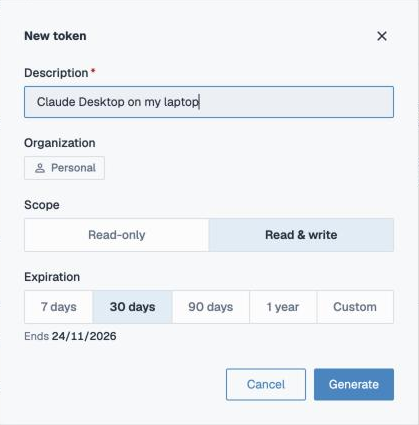
| Field | What it means |
|---|---|
| Description | Required, up to 60 characters, and unique among your tokens. Name it after where it will live, such as "Claude Desktop on my laptop", so you know which one to revoke later. |
| Organization | The organization the token belongs to: the one you are working in when you create it. A token can only reach that organization's data. To use another organization, switch to it first and create a token there. |
| Scope | Read-only reads data. Read & write can also change it: create tables, write rows, change columns, declare links. Pick the narrowest scope the job needs. |
| Expiration | 7 days, 30 days (the default), 90 days, 1 year, or a Custom date up to a year away. |
Copy the token right away. It is shown once, in the Copy your token dialog, and never again. If you lose it, revoke it and create a new one.
Use a token
Send it as a bearer token in the Authorization header:
Authorization: Bearer <your token>
Keep it in an environment variable rather than in code:
export MYCORR_API_TOKEN="<your token>"
Use a token with Python on the Access page shows the commands to install the Python SDK and set the token. For an MCP client, see Connecting with a Personal Access Token.
Manage tokens
The list shows each token's description, scope (Read or Read & write), creation date and expiry. A search box appears once the list is long.
- Revoke stops an active token at once. Anything still using it starts getting refused on its next request.
- Expired and revoked tokens move to their own list. Remove deletes one from there for good.
Keep tokens safe
- Treat a token like a password. Never commit it to version control or paste it into a shared document.
- Give each place that uses a token its own token, so you can revoke one without breaking the others.
- Prefer Read-only and a short expiry. Create a new token when one expires.
- If a token may have leaked, revoke it immediately.
Tokens are signed JSON Web Tokens. Mycorr checks the signature, the expiry and whether the token was revoked on every request.
Mycorr SDKs
Access your Mycorr data programmatically using official SDKs.
Available SDKs
- Python SDK (pymycorr) — Fetch tables as pandas or polars DataFrames.
Python SDK (pymycorr)
The official Python client for accessing Mycorr table data programmatically. It uses Apache Arrow for efficient data transfer and returns data as pandas or polars DataFrames.
Installation
pip install pymycorr
⚠️ Requires Python 3.10 or higher.
Authentication
pymycorr authenticates using a personal access token. You can provide it in three ways:
- Environment variable — set
MYCORR_API_TOKENin your shell:
export MYCORR_API_TOKEN="your-api-token"
.envfile — create a.envfile in your project directory:
MYCORR_API_TOKEN=your-api-token
- Constructor parameter — pass the token directly:
from pymycorr import MyCorr

client = MyCorr(token="your-api-token")
To generate a token, see Personal Access Tokens.
⚠️ Never commit API tokens to version control. Use environment variables or a
.envfile that is listed in your.gitignore.
Quick Start
from pymycorr import MyCorr

# Initialize the client (reads MYCORR_API_TOKEN from env)
client = MyCorr()

# Fetch a table as a pandas DataFrame
df = client.get_table("your-table-id")
print(df.head())

# Fetch a specific version
df_v2 = client.get_table("your-table-id", version=2)

# Fetch as a polars DataFrame instead
df_polars = client.get_table("your-table-id", engine="polars")

# Get table metadata without downloading data
info = client.get_table_info("your-table-id")
print(info["schema"])
API Reference
MyCorr(url=None, token=None, env_file=None, progress="auto")
Creates a new client instance.
| Parameter | Description |
|---|---|
url | API endpoint. Defaults to the Mycorr production URL. |
token | API token. If not provided, reads from MYCORR_API_TOKEN env variable. |
env_file | Path to a .env file. Defaults to .env in the current directory. |
progress | Progress display: "auto", True, or False. |
get_table(table_id, version=None, engine="pandas", progress=None)
Fetches table data as a DataFrame.
| Parameter | Description |
|---|---|
table_id | The table identifier (found in the table URL). |
version | Version number (int) or alias ("latest", "stable"). Defaults to the latest version. |
engine | "pandas" (default) or "polars". |
progress | Override the client-level progress setting for this request. |
get_table_info(table_id, version=None)
Returns table metadata and schema as a dictionary, without downloading the full dataset.
| Parameter | Description |
|---|---|
table_id | The table identifier. |
version | Version number or alias. Defaults to the latest version. |
Error Handling
pymycorr raises specific exceptions for different error scenarios:
| Exception | Description |
|---|---|
TableNotFoundError | The requested table does not exist or you don't have access. |
QuotaExceededError | Your egress quota has been exceeded. |
TableConversionError | Failed to convert the data to a DataFrame. |
StreamingError | Error during data streaming. |
TableAPIError | Base exception for all API errors. |
from pymycorr import MyCorr
from pymycorr.exceptions import TableNotFoundError

client = MyCorr()

try:
    df = client.get_table("your-table-id")
except TableNotFoundError:
    print("Table not found — check the table ID and your permissions.")
MCP Server
The Mycorr MCP Server connects AI assistants and agents to your Mycorr data over the Model Context Protocol. Claude, ChatGPT, Cursor, VS Code, Codex, Gemini CLI and any other MCP client can use it.
Once connected, an assistant can:
- Find data by name across every Model, Table and Dataset you can read.
- Understand a table: its columns, what they mean, their units, and how it links to other tables.
- Analyze with SQL, column statistics and saved recipes, and chart the result inline.
- Build and maintain tables: create them, load and edit rows, change columns, document them, declare links, and checkpoint before a bulk change.
- Read files attached to rows, and export a table to Google Sheets.
It can only ever do what your account can already do in the app. Every call is checked against your permissions, and writes need a token you created with write access.
Connect
The quickest way is the Access page in Mycorr. Under AI clients, pick your client and follow its steps. Every client signs you in through your browser, so there is no token to copy.
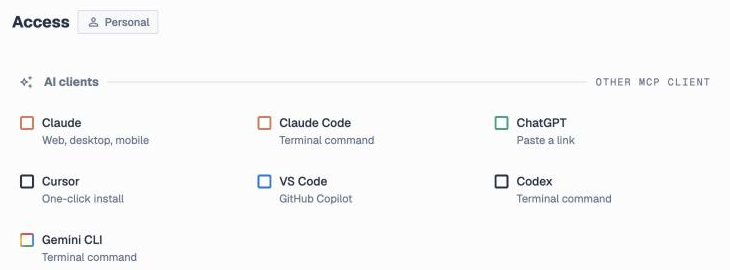
Server URL
| URL | https://space.mycorr.app/mcp |
| Transport | Streamable HTTP |
| Authentication | OAuth 2.1 sign-in, or a Personal Access Token |
Claude
- In Claude, go to Customize → Connectors → Add custom connector.
- Paste
https://space.mycorr.app/mcp. - Approve access in the browser and pick the organization.
On a Claude Team or Enterprise plan, an Owner adds the connector once under Organization settings → Connectors, and each member connects with their own account.
Claude Code, Codex, Gemini CLI
Run one command in your terminal, then approve access in the browser:
claude mcp add --transport http mycorr https://space.mycorr.app/mcp
codex mcp add mycorr --url https://space.mycorr.app/mcp
gemini mcp add --scope user --transport http mycorr https://space.mycorr.app/mcp
ChatGPT
Open Plugins, select +, then Add custom MCP server and paste the URL. On ChatGPT Business and Enterprise, a workspace admin adds it for the workspace.
Cursor and VS Code
The Access page has one-click Add to Cursor and Install in VS Code buttons. To configure by hand, add this entry to your mcpServers (Cursor) or servers (VS Code, with "type": "http"):
"mycorr": {
  "url": "https://space.mycorr.app/mcp"
}
Any other MCP client
Add https://space.mycorr.app/mcp as a remote MCP server and approve access in the browser.
With a Personal Access Token
For a script, a CI job or a client without browser sign-in, create a Personal Access Token and send it as a bearer token:
"mycorr": {
  "url": "https://space.mycorr.app/mcp",
  "headers": {
    "Authorization": "Bearer ${MYCORR_API_TOKEN}"
  }
}
Choose Read & write when you create the token if the agent should change data. A Read-only token can use every read tool and is refused by every write tool.
Treat a token like a password. Keep it in an environment variable, never commit it, and revoke it from the Access page if it is exposed.
One organization per connection
Every connection belongs to exactly one organization.
- The generic URL (
/mcp) asks you to pick the organization when you approve access, if you belong to more than one. Each person who uses a shared connector picks their own. - An organization's own URL (
/org/{org_id}/mcp) skips that choice and locks the connection to that organization. Find it under Organization settings → General → MCP endpoint, or switch Pin to … on in a client's steps on the Access page.
To switch organizations, disconnect and connect again. To use two at once, add each one's own URL as a separate connector.
What a connection can reach:
| Data | Through an organization's connection | Through your personal connection |
|---|---|---|
| That organization's models and tables | Read and write, as your role allows | — |
| Your personal models and tables | Read only, marked "origin": "personal_account" | Read and write |
| Tables shared with you from an organization you are not in | Read, marked "origin": "shared" | Read, marked "origin": "shared" |
| The public catalog | Read | Read |
| Another organization you belong to | Refused. It needs its own connection. | Refused |
A tool never returns the id of something the connection would then refuse, so every id in a response is safe to follow.
How Mycorr data looks to an agent
Models, tables, links, datasets. A model is a workspace of related tables. Tables declare links: the column pairs they join on, which may cross models. A dataset is a curated set of related tables, possibly from several models. It is a shortlist, not a table, and you query its member tables.
Everything is addressed by id. Tables, columns and rows have ids (tab-…, col-…, _row_id). Tools and SQL take ids, never names or positions, so a rename never breaks a query. describe_table hands out the column ids. Row ids come from sample rows, from append_rows for rows you just added, or from selecting "_row_id" in SQL.
Which version you read. Every read reports a served block with the table version and the lens:
- If you can edit a table, you read its latest data (
lens: "live"). - Otherwise you read the owner's release, the version they published (
lens: "released", withreleased_at). Treat that date as the as-of date of your answer. - A table with no release is readable live only by people who can open its model. Anyone else is refused until the owner releases it.
run_sqlreports one entry per table it read, so a join can combine live and released data, and a good answer says so.
Check before you act. describe_table.capabilities says what you may do to a table, such as edit rows, rename or describe it, before you try. Tables imported from another model are read-only here, and so are tables that a recipe writes.
Meaning lives on the columns. A column may carry a description, a unit (with a scale for thousands or millions), and declared intents: primary_key_member, distinct, or nullable: false for a column every row should fill. Read them before choosing columns, comparing values or joining. Intents are declared, not enforced, so treat them as strong hints.
Big integers arrive as strings. A 64-bit integer cell is returned as a decimal string so it stays exact past 2^53. Writes accept a string or a number.
Tools
The server has 36 tools. Your client reads each tool's full parameter schema from the server, so this section covers what each one is for and the rules that matter.
Find and inspect
| Tool | What it does |
|---|---|
search | Finds models, tables and datasets by name in one call. Matching is fuzzy, so it tolerates typos and separators. Descriptions come back for context but are not searched. Start here whenever a question names data. |
list_models | Every model you can read, with its description. |
list_tables | The tables in one model: the ones it owns and the ones it imports, and which of them are recipe results. |
describe_table | A table's columns (ids, types, descriptions, units, intents, formulas), row count, links with their target tables, the datasets it belongs to, its capabilities, and optional sample rows. |
describe_dataset | A dataset's description and the member tables you can read. |
get_maintenance_guide | The rules a dataset's maintainer wrote for keeping it current. Read it before updating a maintained dataset. Most datasets have none. |
list_column_types | Every column type and which types it can be cast to. Static, so call it once. |
search_units | Finds a unit of measurement (QUDT units and currencies) by name, symbol or code, for set_column_semantics. |
Analyze
| Tool | What it does |
|---|---|
run_sql | One read-only SQL query (SELECT, WITH, recursive CTEs, set operations, window functions) over any tables you can read, across models. See Querying with SQL. |
summarize_column | Statistics for one column: null rate, distinct count, and per type min/max/average/median/deciles, category shares, date range with monthly or yearly counts, or the most frequent values. |
visualize | Runs the same SQL as run_sql and draws a Vega-Lite chart, or shows a table's rows as a grid when you pass table_id alone. Hosts that support MCP Apps render it inline; others get the rows. |
audit_link | Measures a declared link against the data: one-to-one or fan-out, how many rows a join would drop, and which key values are orphans. Run it before trusting a join. |
Recipes
A recipe is a saved, parameterized SQL definition in the organization's catalog. People run it on the canvas and agents run it here, so a metric gets one definition instead of five that disagree.
| Tool | What it does |
|---|---|
describe_recipe | What a recipe computes, its parameters and slots, and the joins no link vouches for. Call it before run_recipe. |
run_recipe | Runs a recipe with arguments and returns rows. Defaults to 1,000 rows, at most 100,000. |
materialize_recipe | Saves a recipe's answer into a model as a real table, with no row limit. Re-running with the same arguments rewrites that table in place. |
create_recipe | Saves a new recipe. Refused if an existing recipe already reads the same tables and columns: widen that one instead. |
update_recipe | Widens or redefines a recipe as a new version. Changing a published recipe's meaning needs accept_redefinition: true. |
delete_result | Deletes a recipe's result table. This is the only table an agent can delete, because the recipe can rebuild it. Only collaborators and managers of the model's space can. |
Build and change tables
These need a Read & write connection and edit access to the model.
| Tool | What it does |
|---|---|
create_table | Creates a table with typed columns. In the same call you can give the table and each column a description, unit and intents, and categorical columns their labels. |
add_column | Adds a column. |
rename_column | Renames a column. |
cast_column | Converts a column to another type by adding a new column with the converted values. The original stays until you delete it. |
delete_column | Soft-deletes a column. It can be restored in the app. A table's last column cannot be deleted. |
update_categories | Adds, renames or removes a categorical column's labels. |
set_column_semantics | Sets what columns mean (description, unit, intents) for the whole table in one call. |
set_table_metadata | Renames a table or sets its description. |
checkpoint_table | Saves a named, permanent checkpoint of the current version. Take one before a bulk change. |
Write rows
| Tool | What it does |
|---|---|
append_rows | Adds up to 1,000 rows per call, as objects keyed by column id or as arrays in a declared column order. |
edit_rows | Updates, soft-deletes or restores rows by row id, up to 1,000 per call. Use it when each row gets different values. |
update_rows_where | One UPDATE … SET … WHERE … with the same SQL dialect as run_sql. You must declare how many rows you expect (max_affected_rows or expect: "exactly_one"). A filter that matches more is refused, and nothing is written. |
A value that does not fit its column is refused, never stored by quietly retyping the column. Cast the column first, then write to the new one.
Links
| Tool | What it does |
|---|---|
create_link | Declares the columns two tables join on. Several column pairs make one composite key. Declaring an existing link again returns the existing one. |
delete_link | Removes a link that an agent made for you. A link a person drew stays, for that person to remove in the app. |
Files
| Tool | What it does |
|---|---|
read_attachment | Reads a file from a row's attachment column as an image: one page of a PDF, or a PNG, JPEG, GIF or WebP picture. Other formats are refused. |
Attachments are otherwise read-only to agents. An agent sees file names but cannot add, remove or clear files, and in SQL the column reads as text. To open a file, a person uses the table link that describe_table returns as app_url.
Google Sheets
| Tool | What it does |
|---|---|
export_to_gsheet | Exports a table to a new spreadsheet, or to a new or overwritten tab of an existing one. |
list_exportable_spreadsheets | The spreadsheets Mycorr may write to: ones it created and ones you picked in the app. It cannot list your whole Drive. |
list_sheets_connections | Your connected Google accounts with Sheets access. |
A new spreadsheet always works. If several Google accounts are connected, the export answers status: "choose_account". That is a question to put to the user, not a failure.
Querying with SQL
run_sql, visualize and update_rows_where use the DataFusion SQL dialect.
- Use ids in double quotes:
SELECT "col-019e…" FROM "tab-019e…". Column names are not accepted. - Any tables you can read can be queried together, across models.
- Join along declared links. A join on a column pair that no link declares still runs, but the response names it in
unlinked_joins, a warning to pass on. Joining on part of a composite key warns too. A bareCROSS JOINwith no condition is refused. - Deleted rows are excluded automatically. Do not filter on
_is_row_deleted. _row_idis selectable. It is the handleedit_rowstakes. Add anORDER BYif you pair ids with values across two queries.- Time differences:
mycorr_seconds_between(a, b)returns seconds andmycorr_days_between(a, b)returns days. Plaina - bgives an interval thatAVGandSUMcannot use. - Lists: an empty list is stored as
NULL, so to find rows whose list lacks a value useNOT COALESCE(array_has(col, x), false).
Statements that change data (INSERT, UPDATE, DELETE), DDL, COPY, SET and EXPLAIN are refused by run_sql.
A good workflow
searchfor what the question names. A dataset hit is a curated shortlist; open it withdescribe_dataset.describe_tablefor column ids, meaning, units and links.audit_linkif the answer depends on a join you have not checked.run_sqlorsummarize_columnfor the numbers. Never estimate a count or a sum: compute it.- Say which version you read when a table was released, and pass on any
unlinked_joins.
Writing safely
- Retries. Pass
idempotency_keyoncreate_table,append_rowsandadd_column, so a retry after a dropped response cannot create duplicates. The other write tools give the same result when repeated. - Concurrency. Pass the
expected_versionyou read on writes that take it. If someone wrote first, the write is refused withversion_conflict: re-read and try again. - Blast radius.
update_rows_wherealways states how many rows it may change. - Undo. Deleted rows and columns are soft-deleted and can be restored. Take a
checkpoint_tablebefore a bulk change so the whole table can go back. - What agents cannot do. Delete a table (only recipe results), change attachments, delete a link a person drew, or write to a table imported from another model, written by a recipe, or reached read-only through a personal account.
Errors
A failed call that you can act on comes back as a tool result with isError: true and a body of {code, reason, message}.
| Code | Name | What to do |
|---|---|---|
| −31001 | Permission denied | You lack access. Tell the user; retrying with other arguments will not help. |
| −31002 | Resource limit | A batch was too big, or a plan allowance is used up (storage_quota_exceeded, egress_quota_exceeded, mcp_quota_exceeded). The message carries the figures and the date the allowance returns. Nothing was written. Split the batch, or pass the message on and stop. |
| −31003 | Version conflict | Someone else wrote first. Re-read the table and retry. |
| −31004 | Type change refused | A value does not fit its column. Check list_column_types, cast_column, then write to the new column. |
| −31005 | Server busy | No query capacity right now. Retry after a short wait. |
| −31006 | Table mid-commit | A person has uncommitted changes open on the table in the app. Wait for them to apply or discard; do not retry right away. |
| −31007 | Cast refused | A strict cast found values that do not convert. The message says how many. Nothing changed. |
| −31008 | Invalid column | A declared column was refused before anything was made, for example a key on a type that cannot hold one. The message names the column. |
Limits and allowances
| Limit | Value |
|---|---|
Rows returned by run_sql / visualize | 10,000 by default, 100,000 at most |
Rows returned by run_recipe | 1,000 by default, 100,000 at most |
| Query time and memory | 30 seconds, 1 GiB per query |
Rows per append_rows / edit_rows call | 1,000 |
Columns per create_table call | 256 |
Tables in a model before create_table is refused | 200 |
Links checked per audit_link call | 3 |
Monthly allowances. Tool calls count against the organization's monthly MCP allowance, and data an assistant reads counts toward its egress allowance. See Usage and Limits for the figures on each plan. A call that fails because of something on Mycorr's side is refunded.
Rate limit. Requests are rate-limited per account. Past the limit the server answers 429 with a Retry-After header, and clients back off and retry.
Example prompts
"Find anything about billing in my Mycorr data and tell me what we invoiced this year."
search for billing and invoices, describe_table on the best hit, then run_sql for the total.
"Which product categories bring the most revenue from enterprise customers? Chart it."
search and describe_table find the tables and the links between them, audit_link checks the join, and visualize charts the grouped query.
"Create a Suppliers table with name, country and annual spend in euros, and load these rows."
search_units for the euro, create_table with the columns, their descriptions and the unit, then append_rows.
"Mark every open ticket older than 90 days as stale."
describe_table for the column ids, checkpoint_table, then update_rows_where with the expected number of rows.
"Run the monthly revenue recipe for Germany and save it in my Finance model."
describe_recipe for its parameters, then materialize_recipe.
Permissions and data handling
- Your access, nothing more. Every call is checked against your permissions as they are now. Revoking someone's access in Mycorr takes effect on their next call.
- Read-only tokens stay read-only. A Read-only token or connection cannot change anything, whatever the agent asks.
- Trashed items are hidden. Models and tables in the Trash are left out of every listing.
- Ending access. Remove the connector in your AI client. A Personal Access Token is revoked from the Access page.
- Data handling. Queries run inside Mycorr, and only the results go to the assistant you connected. See the Privacy Policy.
Support
Questions or problems with the MCP server: support@mycorr.app.
Billing
In Mycorr, everything is billed to an organization, never to a person.
Every account has one Personal organization, created with the account and holding exactly one member — you. Company organizations hold a roster, teams and spaces, and are created by Mycorr on request. Each organization pays for itself: the data it stores, the data it serves, and the seats it holds. See Organizations for how they are structured and who may do what in one.
That is the single rule behind most of what follows:
- A table you import from someone else counts against their organization, not yours.
- A colleague who has run out of storage in their personal organization can still write into a company organization that has room.
- Moving a model between organizations moves the bill with it.
- Your personal organization and each company organization are on separate plans, with separate bills and separate invoices.
Who can do what
Governing an organization and paying for it are two different rights.
| Action | Owner | Admin | Member |
|---|---|---|---|
| See Plan & usage | Yes | Yes | — |
| See storage, egress and tool-call meters | Yes | Yes | — |
| Buy a plan, or cancel one | Yes | — | — |
| Change the seat count | Yes | — | — |
| Add or change the card | Yes | — | — |
| Edit the billing email, address and tax number | Yes | — | — |
| See and download invoices | Yes | — | — |
Billing is owner-only, and deliberately narrower than every other governance right. An admin runs the organization; the owner pays for it. An organization can have more than one owner, and every owner gets the full billing surface.
There is no "downgrade" button between tiers. You move up by buying a plan and down by cancelling it, which drops the organization to Free at the end of the cycle you have paid for. Within a tier you can move either way by changing the seat count.
Members are not shut out of everything. When an organization hits a limit, a banner tells every member which limit was reached and when it resets, so someone whose export just failed knows why — and is told that an owner can move to a larger plan.
Where to find it
- Look at the top of the left sidebar. It shows the organization you are working in, with its plan on a badge beside the name.
- Hover over it. A gear appears at the right of the row.
- Click the gear. Organization settings open.
- Choose Plan & usage from the menu on the left.
If you do not see Plan & usage, you are a member rather than an owner or admin of that organization.
To reach a different organization's billing, click the organization name first and switch to it, then use the gear.
What is on the page
- Plan — what the organization is on, what it costs, how many seats it holds, when it renews, and the buttons that change any of that.
- Usage — storage, egress and MCP tool calls, each against its ceiling, with the date the monthly allowances start over.
- Invoices — every payment, with a PDF to download.
Anything urgent — a failed card, a missing card, a payment being applied — appears above all three, at the top of the page.
Your personal organization also carries a small meter at the foot of the sidebar, which appears once you pass 80% of an allowance. It is a warning, not a dashboard; company organizations show their usage on the Plan & usage page instead, where the people who can act on it are.
Who takes the payment
Payments are handled by Paddle, who act as Merchant of Record. They charge the card, calculate and remit tax, and issue the invoice.
Two consequences worth knowing up front, because they explain a lot of what the app does:
- Card details never reach Mycorr. Every card form you see in Mycorr is Paddle's, rendered inside a Mycorr dialog. We never hold a card number.
- Money figures on an invoice are Paddle's to compute. Mycorr shows you the recurring rate, which is exact. Tax, proration and the final total are calculated by Paddle and appear on the invoice.
The company name and tax number you enter are held by Paddle, because they are what the invoice is issued against.
Read on
- Plans — what Free, Pro and Enterprise include, and how to buy one.
- Seats — how seats are counted, bought and freed.
- Usage and limits — what storage, egress and tool calls measure, and what happens at the ceiling.
- Managing your subscription — changing the card, cancelling, resuming.
- Billing details and invoices — the billing email, company details, tax number and receipts.
- When a payment fails — past-due, missing cards, and the other states that need attention.
Plans
Every organization sits on a plan, and a new one starts on Free. The plan belongs to the organization, so your personal organization and each company organization are each on their own plan and pay their own bill.
What each plan includes
| Free | Pro | Enterprise | |
|---|---|---|---|
| Price | $0 | $20 per seat / month $192 per seat / year | Talk to us |
| Storage | 1 GB | 20 GB per seat | Negotiated |
| Egress per month | 2 GB | 100 GB per seat | Negotiated |
| MCP tool calls per month | 500 | 25,000 per seat | Negotiated |
| Seats | 10 | As many as you buy, up to 500 | Negotiated |
| Models and tables | Unlimited | Unlimited | Unlimited |
Two things to read carefully in that table.
Pro's figures are per seat and they add up. Three seats is 60 GB of storage, 300 GB of egress a month and 75,000 tool calls a month — for the organization as a whole, not for each person. They replace the Free grant rather than stacking on top of it, so three seats is 60 GB, not 60 GB plus the free 1 GB.
Models and tables are uncapped on every plan, and that is a deliberate commitment rather than an unfinished limit. What costs anything is storage, egress and tool calls, and those three are the ones with ceilings. See usage and limits for what each measures.
Byte figures are decimal (1 GB = 1,000,000,000 bytes), which is how the app displays them everywhere.
A Personal organization holds exactly one person, so Pro there is always a one-seat plan. A Company organization on Free gets 10 seats without paying for them.
The 500-seat ceiling on Pro is a guard against a mistyped number becoming a five-figure invoice, not a real limit on how big a team can be. If you need more than that, talk to us about Enterprise.
Enterprise has no published price and cannot be bought from inside the app. It is the last card in the Plans dialog, and its button is Contact sales, which opens the support panel.
Monthly or yearly
Pro is sold on both terms, and the year is priced at a 20% discount — $192 a seat instead of $240. You pick the term on the plan card, before checking out.
The allowances are identical either way. The term changes the price and when you are charged, nothing else. It does change one thing later: when the cost of extra seats is collected.
Buying a plan
- Open Plan & usage (how).
- Click Upgrade, at the right of the plan's name. The Plans dialog opens, showing your current plan beside everything above it.
- If the tier offers both terms, choose monthly or yearly on its card.
- For a company organization, set the number of seats with the stepper on the card. It will not go below the people already in the organization, counting outstanding invitations. A personal organization has no stepper — it is always one seat.
- Click the button on the plan you want.
- You are asked where this organization should be billed. Your own email is offered when it is free; an email already used by another organization is refused, so pick or type one of this organization's own. Click Continue.
- The card form opens in a Mycorr dialog. Enter the card and confirm.
The dialog closes on payment, and the page shows Payment received — setting up your new plan. This usually takes a few seconds and the page updates itself.
If it has not landed after two minutes, the notice becomes Still setting up with a Check again button. Your payment is safe either way; do not buy a second time.
No Upgrade button? It appears only when the catalog holds a plan priced above your current one. On Pro there is nothing above it, so there is nothing to show. It is also hidden while a payment is being applied, while the plan is paused, and while the plan could not be read — in each case because offering it would risk selling you something you may already have.
Prices on the plan cards come from Paddle for your own country, so the figure you see already reflects local currency where we sell in one. Tax is added at checkout and appears on the invoice.
What happens before you are charged
Every purchase runs a check with Paddle first, on the email you are buying with, and it can stop the checkout before any money moves. If it does, you will see one of these, and nothing has been charged:
| Message | What it means | What to do |
|---|---|---|
| This organization already holds a paid subscription | You are already paying for this one | Nothing. The page refreshes to show it. |
| We found the subscription you already pay for and restored it | Common after an organization is re-created; your plan is simply back | Nothing. |
| You already pay for a subscription that isn't attached to any organization | A subscription exists but no organization claims it | Attach it |
| We couldn't confirm your payment details | We could not reach Paddle | Try again in a moment |
This check is why it is hard to end up paying twice for the same organization. It deliberately fails closed: if Paddle cannot be reached, the checkout stops rather than risking a second subscription.
Leaving a paid plan
There is no downgrade button between tiers. To leave Pro, cancel the subscription: the plan runs to the end of the cycle you have paid for, then the organization returns to Free.
To change capacity without changing tier, change the seat count — up, which takes effect at once, or down, which takes effect at the renewal.
Reading the plan on the page
The Plan section names the plan, states the rate and the seats, and carries one short line at the right — the strongest thing currently true of it:
| Line | Meaning |
|---|---|
Renews 14 Oct | Ordinary. The next charge is on that date. |
Ends 14 Oct | Cancelled. The plan runs to that date, then stops. |
Past due | A charge failed. See when a payment fails. |
Underneath the name you may also see a sentence about what came before — "Your Pro plan ended on 3 September 2026" — so an organization back on Free can say how it got there.
Seats
On a paid plan, an organization buys seats. A seat is capacity, not a person: you buy a number, and people occupy them.
Seats decide two things at once, which is why they matter more than a headcount:
- The bill. Pro is priced per seat.
- The allowances. Pro's storage, egress and tool-call ceilings are each multiplied by the seat count, so buying a seat raises what the organization can hold as well as who it can invite.
Your Personal organization always holds exactly one person, so it has no seat count to manage.
What occupies a seat
Every member and every outstanding invitation holds one.
Counting invitations is deliberate. An invitation you have sent is capacity you have already promised away, and it would be a poor surprise for the person accepting it to be turned back at the door. So the two doors count differently, on purpose:
| Action | Counted against |
|---|---|
| Sending an invitation | Members plus outstanding invitations |
| Accepting an invitation | Members alone |
The effect is that an invitation already sent can always be honoured, even if the organization filled up in the meantime.
Two more rules follow from "a seat is capacity":
- Removing a member frees their seat immediately, ready for the next invitation. It does not change the bill — you still own the seat, and it still renews.
- Withdrawing an invitation frees its seat the same way.
On Free, a company organization gets 10 seats. They are not bought and not billed, but they are counted by exactly the same rules.
Reading the seat count
The Plan section states the seats bought, with the headroom beside them:
| Shown | Meaning |
|---|---|
5 seats · 2 vacant | Two more people can be invited |
5 seats | Every seat is taken |
5 seats · 1 over | The organization holds more people than it has seats |
Being over happens after a plan ends, after a subscription is attached at a smaller count, or if an owner's quota was changed by hand. Nobody is removed and nothing stops working — you simply cannot invite anyone else until you add a seat. See when the seats are fewer than the people.
Changing the seat count
- Open Plan & usage (how).
- Click Change seats — or Add seats, if this subscription has no renewal date to reduce against yet.
- Set the number with the stepper, or use the +1 / +2 / +5 shortcuts. The shortcuts count from the seats you already hold, so pressing one twice does not compound.
- Read the ledger: what you already hold, what you are adding or removing, the new total, the rate, and the new recurring bill.
- Click the confirm button, which names the change — Add 2 seats · $100/mo, or Reduce to 3 seats.
The two directions behave differently, because one of them you have already paid for:
- More seats are usable straight away. Someone who has just bought a seat should not have to wait to fill it.
- Fewer seats take effect at the renewal, never on the click. See reducing the seat count.
When the money moves
Buying seats is the one place your term changes what happens. (A reduction is charged nothing either way — see reducing the seat count.)
| Term | What happens |
|---|---|
| Monthly | The seats are available now. The prorated cost for the rest of this cycle is added to your next invoice, and all the seats then renew together. |
| Yearly | Charged now, prorated to the end of this cycle. All the seats then renew together. If the card is declined, the whole change is refused and no seats are added. |
The difference is deliberate. A month of seats on credit is a rounding error and not worth a second invoice and a second processor fee; a year of them is not.
The recurring figure in the dialog (rate × seats) is exact and ours to compute. The prorated charge for the rest of this cycle is Paddle's, with tax, so the dialog tells you when it lands rather than quoting a number we cannot stand behind.
What adding a seat does not do
A mid-cycle seat raises the ceilings and leaves the counters where they are. You have bought capacity, not a fresh allowance, and your billing date does not move. See when the billing month starts.
Reducing the seat count
Seats you have bought are paid for to the end of the cycle, so a reduction does not take them away early. It is parked for the renewal instead: you keep every seat you hold until then, and the subscription renews at the smaller number.
Set a number below what you hold and confirm. The dialog says what will happen:
The seats you have stay until 14 October, when the subscription renews at 3. Nothing is charged for the change.
Nothing is charged, and nothing is refunded. The renewal is billed at the new count; there is no mid-cycle credit to issue because there is no mid-cycle change.
Once parked, Plan & usage carries a standing note:
Seats drop at the end of this cycle. This organization renews at 3 seats on 14 October. The 5 you have now stay until then.
Keep 5 beside it calls the reduction off and leaves the subscription where it is. So does setting the count back to what you hold.
The floor
The stepper will not go below the people already in place — members plus outstanding invitations — and says so:
This organization holds 4 members and outstanding invitations, so it can't hold fewer seats than that.
Remove members or withdraw invitations first, and the floor drops with them. The floor is checked again when the reduction actually lands, so a roster that grew while it waited is honoured rather than overridden.
A subscription that has no renewal date yet has no boundary to park against. There the stepper floors at the seats you hold and only Add seats is offered.
When the seats are fewer than the people
An organization can legitimately hold more people than it has seats — after a plan ends, after a subscription is attached at a smaller count, or after an owner's quota was changed by hand. Plan & usage says so:
Add a seat before inviting anyone new. The subscription carries 3 seats and this organization has 5 members. Everyone keeps working — invitations are what stop, including any already sent.
Nobody is removed and nothing they do is interrupted. Only invitations stop, and that includes ones already sent, which cannot be accepted until a seat is free.
Seats and cancellation
While a subscription is scheduled to end, the seat editor is not offered at all — there is no cycle after this one for a change to apply to. The same is true while the plan is paused.
Use Keep subscription first, then change the count.
Usage and Limits
Three things are metered, and all three are counted against the organization that owns the resource — never against the person who happened to click.
| Meter | What it counts | When it resets |
|---|---|---|
| Storage | Data held by this organization's tables | Never — it is a running total |
| Egress | Data leaving Mycorr | Every billing month |
| MCP tool calls | Tool calls an AI assistant made against this organization's data | Every billing month |
All three are on the Usage section of Plan & usage, each with a bar, a percentage and the ceiling it is measured against. The section header carries the reset date for the two monthly allowances, and a Refresh button — nothing on this page polls, so a number you are watching climb needs a nudge.
Storage
Everything your organization's tables hold. It goes up when data is added and down when it is deleted.
A table imported from another organization counts against its owner, not you. Importing is a view onto someone else's table; the bytes stay theirs. The same is true in reverse — publishing a table to the public catalog leaves the bytes billed to you.
Attachments count too. A file uploaded onto a row is stored against the organization that owns the table it landed on.
When storage is full, uploads and edits are refused until space is freed. Waiting does not help: this is the one meter that never resets. To free space, delete data, or buy more — on Pro, each seat carries 20 GB.
Enforcement always asks the organization that owns the resource, never the person writing. So an editor whose own personal organization is full can still write into a company organization that has room.
Egress
Data leaving Mycorr: exports, downloads, the API, and what AI tool calls return.
Reading inside the app is free. Scrolling a table, filtering it, opening a model — none of that is egress. What counts is data crossing out of Mycorr, to you or to something you have pointed at it.
Which organization pays is the organization you are acting in when you pull the data. If you export a table from inside a company organization, that organization pays. If someone outside it exports a table you shared with them, their organization pays, not yours — so sharing a table never puts your allowance at the mercy of the people you shared it with.
Enforcement is strict in two ways, and both exist so you never get a file you cannot trust:
- A download whose size is known in advance is refused whole if it would not fit. You do not get a partial file.
- A stream is cut the moment it crosses the ceiling, and the result is an error rather than a short file — so a truncated export can never be mistaken for a complete one.
When the allowance is spent, exports and API reads are refused until the reset date shown on the row.
MCP tool calls
Every tool call an AI assistant makes against this organization's data, through the MCP server.
The count is a rate governor rather than the cost — what those calls return is already charged as egress. It exists to stop a runaway agent loop eating your allowance.
A failed tool call still consumes a call but is charged no egress. The error is our answer, not your data. That is deliberate: refunding failed calls would make a malformed retry loop free.
When the billing month starts
Egress and tool calls reset on your organization's billing anniversary, not on the first of the calendar month. An organization whose cycle starts on the 14th resets on the 14th.
Short months are handled by clamping rather than drifting: an anchor on the 31st runs 31 Jan → 28 Feb → 31 Mar → 30 Apr, and returns to the 31st rather than ratcheting down for good.
The reset date does not move when you add seats, and it does not move when the plan changes.
On the panel, Since and Resets are two different clocks and will not always agree. Since is when the current plan period opened; Resets is the next billing anniversary. They coincide for a new organization and part company the first time a plan changes. That is the intended reading: the plan changed, the billing cycle did not.
Hitting a limit
A spent allowance stops the whole organization doing the thing, and every member is told — not just the owners. A banner appears across the top of the app naming which limit was reached, when it comes back, and who can act on it:
Limits reached: Egress. Egress resets on 14 October. An owner can move to a larger plan.
Owners see "See Plan & usage in organization settings" instead, because they can do something about it. Admins see the meters on Plan & usage too, but buying a plan is an owner's.
Below 100%, personal organizations show a small meter at the foot of the sidebar once you pass 80%. Company organizations do not — their usage lives on the Plan & usage page, where the people who can act on it are.
What a spent allowance does not stop
Storage and egress limits bound what an organization can take on and pull out. They never lock you out of what you already have:
- Reading inside the app keeps working on every meter.
- A full storage meter refuses new data, not access to old data.
The one thing that can make an organization read-only is an unpaid card, not a spent meter — and even then, reading and exporting keep working. See when a payment fails.
Managing Your Subscription
Everything on this page is owner-only and lives on Plan & usage.
Which buttons you will see
The row of actions changes with what the organization has, so you will rarely see all of them at once:
| Button | Appears when |
|---|---|
| Upgrade | The catalog holds a plan priced above the current one |
| Change seats / Add seats | There is a live paid subscription on a company organization, neither paused nor scheduled to end |
| Billing details | There is a live subscription and a readable billing address |
| Cancel subscription | There is a live subscription not already scheduled to end |
| Keep subscription | A cancellation is scheduled |
The seat button reads Change seats once the subscription has a renewal date to reduce against, and Add seats before then. See changing the seat count.
All receipts, beside the Invoices heading further down, is not one of these: it opens your receipts at Paddle and appears whenever the organization has invoices, live subscription or not — but only for the person whose card is on file, or for any owner once that person has left.
Cancel sits at the far right of the row, away from the others. The act you cannot take back is not the one nearest your cursor.
Changing the card
- Open Plan & usage.
- Click Billing details.
- Under Payment, click Update card (or Add a card if there is none).
- Enter the card in the dialog that opens and confirm.
You can also reach the same form in one click from whichever notice is asking for it — a failed payment, a missing card, or a departed payer each offer the button in place. That is on purpose: nothing that is failing right now should be two clicks away.
The form is Paddle's, shown inside a Mycorr dialog (why).
Changing the card is deliberately not done through Paddle's billing portal. A portal session covers the whole billing account wherever it lands, so a co-owner opening one could reach every other organization that account pays for. The inline form is scoped to this subscription alone, which is why every owner gets it — including owners who are not the person paying.
No card on file means exactly that, and the panel warns before anything fails. It is rare — every checkout takes a card — and usually means a subscription set up outside the app, or a card removed at Paddle. Add one before the renewal date shown.
Once you confirm a card, the status bar at the top follows it: Card saved — confirming with the payment processor…, then Card updated — or, if the card you added makes you the person paying, Card updated. Your card now pays for Acme Data. Paddle reports the change a little after the form closes, so this can take a minute; if it takes longer the notice says so and offers Check again. The card is safe at Paddle either way.
Cancelling
Cancel subscription schedules the plan to end at the close of the cycle you have already paid for. It is neither immediate nor destructive.
- Open Plan & usage.
- Click Cancel subscription.
- Read the confirmation, which names the exact end date.
- Click Cancel at end of cycle, or Keep subscription to back out.
What the confirmation tells you:
Your plan stays exactly as it is until 14 October, when it ends. Nothing is charged after that. Everything this organization has stored stays readable and exportable afterwards, and you can change your mind any time before then.
Three things to take from it:
- Nothing is deleted. After the plan ends the organization drops to Free. If it holds more than Free allows, you keep all of it — you simply cannot add more until you are back under the ceiling. Exports keep working throughout.
- The plan does not shrink early. Seats, storage and allowances stay at their paid level until the end date.
- It is reversible right up to that date.
If the organization is already holding more than Free allows, the confirmation says so before you commit, with the figures:
Storage is 14.2 GB and the free plan allows 1 GB, so afterwards this organization can read and export but not add data.
That is a courtesy, not a block — cancelling is still yours to do. It appears only when it applies.
Once scheduled, the plan line reads Ends 14 Oct and the button becomes Keep subscription. While a cancellation is scheduled the seat editor is not offered (why) and the billing details form is frozen — the paperwork on it is what a future invoice would carry, and none is coming.
The one exception is an unpaid cycle. Money already owed still has to settle, so the card stays reachable through a scheduled cancellation.
When the plan actually ends, the organization's billing email is freed shortly afterwards, so it can be used by another organization — or by this one again. Invoices are untouched by that; see one organization, one billing email.
Resuming
- Open Plan & usage.
- Click Keep subscription.
The plan renews as normal on its usual date and the button goes back to Cancel subscription. Nothing is charged for resuming, and seats and billing details unfreeze.
Once a subscription has ended
Most of the billing surface goes quiet: there is nothing left to cancel, no seats to buy, and no paperwork to edit.
What stays is the Invoices list, with All receipts beside it for the person whose card was on file. Invoices are yours to keep, including for a plan that has ended.
To come back, use Upgrade as normal. It is a first purchase again: you pick the email the organization will be billed at and enter a card, because the account it had was freed when the plan ended. The check that runs before any charge still guards against paying twice for the same organization.
If the plan is paused
Paddle can pause a subscription. When that happens the organization sits on Free with the subscription still in place, and the panel says so:
Your Pro subscription is paused. This organization is on Free until it resumes.
This is not the same as an ended plan, and the subscription is not lost. Upgrade is hidden while it lasts, so that you cannot be sold a second subscription alongside the paused one.
Billing Details and Invoices
Who gets invoiced, where, as which company, and where the receipts live afterwards. All of it is owner-only, and all of it sits behind the Billing details button on Plan & usage.
Editing the details
- Open Plan & usage.
- Click Billing details.
- Edit any of the fields below.
- Click Save.
Everything here applies to future invoices. Nothing already issued is rewritten.
What the dialog holds
Payment — the card on file, shown as Visa ending 4242 · expires 09/2028 where Paddle can tell us, with Update card beside it. See changing the card.
Invoices
| Field | What it does |
|---|---|
| Billing email | Where invoices and receipts are sent |
| Name on invoice | The name the invoice is made out to |
Company — fill this in when the invoice needs to carry a company rather than a person:
| Field | What it does |
|---|---|
| Company name | Appears on the invoice |
| Tax / VAT number | Decides reverse charge and how tax is applied |
| Company number | Registration number, where your jurisdiction wants one |
| Also send invoices to | Extra recipients, one per line, as Name <email> or a bare address |
Address — address, city, postal code, region or state, and country.
Checkout records a country (and in some places a postal code) and nothing more, so a fresh subscription's address section reads Add rather than Show: open it and the country is already chosen, fill in the rest. Once a street or city is on file the section is Show/Hide.
Changing the country shows "Tax may change". Tax is based on the country and applies from the next invoice.
This form is the only place these can be changed — Paddle's own portal does not edit them. If Paddle refuses something, such as a tax number in the wrong format or a postal code it does not recognise, the message appears on the field it names, so you can correct it in place rather than guessing.
The form is frozen while a cancellation is scheduled, and after a subscription ends. There is no future invoice for the details to appear on.
One organization, one billing email
Every organization is billed at an address of its own. Paddle keeps a single billing account per email, so two organizations on one email would share a receipts page, a name on the invoice and a saved card — and the app refuses to create that.
Changing the billing email moves where invoices and receipts go, and nothing else: the card, the address and the company details stay exactly as they were. There is no card to re-enter afterwards.
An email already used by another organization is refused. The dialog checks as you type and says so before you save:
Already used for billing elsewhere. Each organization needs its own billing email, so pick one that is not in use — or add this address as an invoice recipient to send copies there instead.
Add as recipient is offered right there, and is usually what was actually wanted — it adds the address to Also send invoices to and leaves the billing arrangement alone.
If the check itself could not run — Paddle unreachable for a moment — the dialog says "We couldn't check this email. If it is already used for billing elsewhere the save will be refused, and nothing changes." You can still save; the same rule is applied on the way in.
When a subscription ends, its billing email is freed. Shortly after the last subscription on an organization is cancelled — whether you cancelled it, or it was cancelled for you — the address it was billed at becomes available to any organization again, this one included. Nothing else changes: the invoices stay where they are (below).
Choosing at checkout
Every purchase with nothing live picks the email it will be billed at, before the card form opens:
Where should this organization be billed? Receipts go to the address you pick, and only it can manage payments later. Each organization needs an address of its own.
Your own account email is offered and selected when it is free. If it already bills another organization it is shown greyed out with Already used for billing elsewhere, and you type Another email. A typed address is checked the same way, and Continue stays off while it is taken — a charge that landed on another organization's account could not be undone afterwards, so this is the one moment it is refused.
This is true of a resubscribe too. An organization that cancelled and comes back is not offered its previous account: that account was freed when the subscription ended, so it picks an email and enters a card exactly as a first purchase does.
Invoices
Every payment appears in the Invoices section of Plan & usage: date, amount, invoice number, and a download button.
To download one:
- Open Plan & usage.
- Find the invoice in the Invoices list. Load more pages further back through the history.
- Click the download icon on its row. The PDF opens in a new tab.
The list is this organization's and nobody else's — which is what you want when reconciling a single team's spend.
Rows stay plain unless there is something to say. A status badge appears only when an invoice is not simply paid, and money that came back on a charge — a refund or a credit — appears on the invoice it came back from, as −€20.00 refunded, so a month's real cost is read off one row rather than two.
Cancelled subscriptions keep their invoices. An organization back on Free still shows everything it was charged.
All receipts
Receipts and payment methods at the foot of the Billing details dialog, and All receipts beside the Invoices heading on Plan & usage, both open Paddle's own page for the billing account. It shows the same invoices, plus the saved payment methods.
That page belongs to the billing account rather than to the organization, so it is offered only to the person whose card is on file. If you are an owner but not that person, the link simply is not there — and you are not missing anything you need: this organization's invoice list, its PDFs, refunds, the card form, the paperwork, seats and cancellation are all in the app and all available to you.
There is one exception. Once the person paying has left, every owner gets the link, so the receipts do not leave with them.
If Paddle cannot be reached at that moment you will see "Receipts could not be reached just now. Everything else here still saves." — that is an outage, not a permission problem. Try again shortly.
When a Payment Fails
One rule holds throughout, whatever state an organization is in: you can always read and export your own data. No amount owed changes that. Every export door, and both monthly meters in front of them, are untouched by whether a card went through.
What a failed payment stops is the organization growing.
The past-due ladder
| Days since the charge first failed | What still works | What is refused |
|---|---|---|
| 1 – 7 (grace) | Everything | Nothing |
| 8 – 39 (read-only) | Reading, exporting, renaming, sharing | New data, new members |
| 40 | Reading, exporting | The plan lapses |
Day 1 is the day the charge first failed, not the day of the latest retry. Paddle retries a failed card several times, and the window does not restart on each attempt.
Days 1 to 7
A warning at the top of Plan & usage:
Payment failed. We could not charge your card (day 3). Update it before 14 October to keep adding data and members. Nothing is locked yet.
Nothing is blocked during grace. To fix it:
- Click Update payment method on the notice.
- Enter a working card and confirm.
The window closes as soon as a charge succeeds, and any future failure starts a fresh window from day 1.
Days 8 onward
The warning becomes an error:
Read-only — payment overdue. Unpaid since day 12. This organization can't take on new data or members, and the plan lapses on 14 November. Everything it already holds stays readable and exportable.
Read-only means the organization may not grow. Writing data, and adding seats or members, are refused. Renaming things, editing descriptions and sharing are not — they cost nothing and grow nothing.
The fix is the same: Update payment method on the notice.
Owners see that button; other members see the state without it. The state is theirs to know; the fix is not theirs to make.
No card on file
If a subscription has no card behind it, the panel says so before anything fails:
No card on file. The next payment on 14 October will fail. Add a card for this organization.
Click Add a card and enter one. See changing the card for why this usually happens.
Upgrade is deliberately hidden while this notice is up. Buying again would risk a second subscription instead of fixing the first one.
The person paying has left
If the owner whose card is on the subscription leaves the organization, is removed, or deletes their account, every remaining owner gets a notification:
Priya is no longer in Acme Data, but its invoices still go to them. Update the billing email and card in Plan & usage.
and a standing callout on Plan & usage:
The person paying for this organization has left. Their card is still the one being charged, and invoices still go to
priya@acme.com. Update the card, then the billing email.
Do it in that order:
- Click Update card and enter a card that belongs to someone still here. The status bar confirms it once Paddle reports the change — Card updated. Your card now pays for Acme Data. — which can take a minute.
- Click Billing details and change the Billing email to an address you control.
The order matters, and the card is the half that counts. Taking the card over is what retires the callout — not changing the email, and not clicking anything to acknowledge it. Exactly four things clear it:
- An owner's card change, once Paddle confirms it.
- A new checkout on the organization.
- The departed person rejoining.
- Their account being deleted.
There is deliberately no way to dismiss it. A dismiss button used to sit here, and it silenced a state nobody had resolved — the departed person's card went on being charged and their address went on receiving the invoices, with nothing left on the page to say so. The notice stands until somebody takes the billing over.
It goes quiet on its own when there is nothing live to charge, so an organization whose plan has already ended is not nagged about it.
While this notice is up, every owner can open Paddle's receipts page for the billing account, not just the person whose card is on file. That is the exception to the usual rule, and it exists so a departed colleague cannot take the receipts with them.
A subscription that belongs to no organization
Occasionally an email is paying for a subscription that no organization claims — almost always one bought before the organization was re-created.
You already pay for a subscription that isn't attached to any organization. Your email is paying for a subscription no organization claims — usually one bought before this organization was re-created. Attach the one that belongs here; contact support to close any other.
Each one is listed with what it was bought for: the plan, the seat count, the organization name and kind, and since when.
- Find the row that matches this organization.
- Click Attach to this organization.
Mycorr will not guess. A company organization is never assumed to be a re-created namesake, so the attach is yours to confirm.
If more than one subscription is listed and only one belongs here, attach that one and contact support to close the rest.
A subscription bought for the other kind of organization
A subscription remembers which kind of organization it was bought for, and it cannot cross. What the row offers instead depends on which way round it is:
| The row is | Where you are | What it offers |
|---|---|---|
| Bought for a company organization | Your personal organization | Create an organization |
| Bought for a personal organization | A company organization | "Attach it from your personal organization" |
Create an organization carries the subscription to the new-organization form, where a tick asks whether to claim it:
Use the subscription you already pay for. Put this organization on Pro (5 seats) instead of Free. Nothing is charged — it moves the subscription you already pay for onto this organization, and the plan above stops applying.
The tick is the consent, because money is involved: leave it clear and the new organization starts on Free with the subscription still unattached. Every rule is checked again when the organization is created, so ticking it is intent rather than a promise.
Fewer seats than the organization holds
Attaching is allowed even when the subscription carries fewer seats than the organization has people — being over is a legal state, not an error. The row warns first:
3 seats for 5 members — add seats after attaching to invite anyone new.
and afterwards Plan & usage keeps a callout until a seat lands. Nobody is removed; see when the seats are fewer than the people.
Most of the time you will never see this screen. A recovery check runs quietly when you sign in and re-attaches whatever it can prove is yours.
Billed twice
If an organization ends up with two live subscriptions:
Billed twice. This organization has two live subscriptions, so it is being charged twice. Cancelling below ends
sub_01abc…only — contact support to have the other one refunded and closed.
- Cancel the subscription shown.
- Contact support about the other one. We will refund it.
A charge you disputed with your bank
Disputing a charge with your bank — a chargeback — is not the same as cancelling, and it does not go through the past-due ladder above. There is no grace window:
- The plan is given up at once and the organization drops to Free.
- The subscription is cancelled at Paddle, so the next cycle cannot charge a disputed card.
Your data is untouched and stays readable and exportable, as it does in every other state on this page. But nothing waits for the cycle to turn, because the money for the current one is being taken back.
If the dispute is later rejected or reversed, the plan does not come back on its own — use Upgrade to buy again, or contact support.
A refund or a credit changes none of this. Money coming back on an invoice is ordinary; it appears on the invoice it came back from and the plan carries on. Only a dispute ends it.
A payment that has not landed
After paying, the panel shows Payment received — setting up your new plan. This page updates the moment it lands. That normally takes seconds.
After two minutes it becomes Still setting up — your new plan is taking longer than usual to activate. Nothing about your payment is lost, with a Check again button.
Press Check again. Do not buy a second time — your payment is safe. If it persists, contact support.
The plan could not be read
If Plan & usage says The plan couldn't be loaded right now, that is a failure to read, not a statement that you have no plan. Upgrade is deliberately not offered in that state, so you cannot be sold something you may already have.
Refresh the page.
Legal
Terms of Service
1. Acceptance of Terms
By accessing or using Mycorr ("Service"), you agree to be bound by these Terms of Service ("Terms"). If you do not agree to these Terms, you must not access or use the Service.
These Terms constitute a legally binding agreement between you and Recons Ltd, a company incorporated in England and Wales under company number 14359202, with its registered office at Office 9, Dalton House, 60 Windsor Avenue, London SW19 2RR, United Kingdom ("Recons Ltd", "we", "us", or "our").
You must be at least 16 years of age to use the Service. By using the Service, you represent and warrant that you are at least 16 years old. If you are using the Service on behalf of an organisation, you represent and warrant that you have the authority to bind that organisation to these Terms.
2. Definitions
- "Content" means any data, text, files, schemas, table structures, database configurations, or other materials that you upload, create, store, or transmit through the Service.
- "Service" means the Mycorr web application, including all features, tools, and APIs provided at space.mycorr.app or any successor domain.
- "User" means any individual who accesses or uses the Service, whether as a registered account holder or otherwise.
3. Description of Service
Mycorr is a collaborative data modelling and database management platform that enables teams to model database schemas, manage data with real-time synchronisation, and handle data imports from various sources including CSV, Parquet, and Google Sheets.
4. Changes to the Service
- (a) We keep improving the Service, so features may be added, changed, or removed over time.
- (b) We may discontinue the Service, or any part of it. Where we can, we will give you reasonable notice first. If you are on a paid plan, our Refund Policy sets out the refund you are owed, including a refund of unused prepaid fees if we discontinue the Service or the plan you are on.
5. User Accounts
- (a) You can create an account by signing in with Google or by registering with an email address and password. You are responsible for maintaining the security of your Google account credentials or your password.
- (b) You are responsible for all activities that occur under your account.
- (c) You must notify us immediately at support@mycorr.app if you become aware of any unauthorised use of your account.
- (d) You may not create multiple accounts for the same individual.
- (e) We reserve the right to suspend or terminate accounts that we reasonably believe are compromised or being misused.
6. User Responsibilities
You agree to:
- Provide accurate and complete information when using the Service.
- Use the Service only for lawful purposes and in compliance with all applicable laws and regulations.
- Comply with all applicable data protection laws when storing personal data of third parties in the Service.
- Not use the Service in any manner that could damage, disable, overburden, or impair the Service.
7. Acceptable Use
You agree not to:
- Attempt to gain unauthorised access to the Service, other user accounts, or any systems or networks connected to the Service.
- Interfere with or disrupt the Service or servers or networks connected to the Service.
- Upload, transmit, or store any malicious code, viruses, or harmful content.
- Use the Service to store or process data that is subject to specific regulatory requirements (such as protected health information under HIPAA or payment card data under PCI DSS) unless you have independently ensured compliance with those requirements.
- Scrape, crawl, or use automated means to access the Service without our prior written consent.
- Reverse engineer, decompile, disassemble, or otherwise attempt to derive the source code of the Service.
- Circumvent, disable, or interfere with any security features of the Service.
- Use the Service to infringe upon the intellectual property rights of any third party.
- Impersonate any person or entity or misrepresent your affiliation with any person or entity.
- Use the Service for any illegal or unauthorised purpose.
8. User Content and Data Ownership
- (a) You retain all ownership rights in your Content. We do not claim ownership of any Content you upload, create, or store through the Service.
- (b) By using the Service, you grant us a limited, non-exclusive, worldwide, royalty-free licence to use, copy, store, transmit, and display your Content solely to the extent necessary to provide, maintain, and improve the Service.
- (c) You are solely responsible for the legality, reliability, appropriateness, and intellectual property ownership of your Content.
- (d) You represent and warrant that you have all necessary rights and permissions to upload and use your Content through the Service.
- (e) We may remove or disable access to Content that we reasonably believe violates these Terms or applicable law.
9. Intellectual Property
The Service, including its original content, features, functionality, design, source code, and underlying technology, is owned by Recons Ltd and is protected by international copyright, trademark, patent, trade secret, and other intellectual property laws. Our trademarks and trade dress may not be used in connection with any product or service without our prior written consent.
10. Feedback and Suggestions
If you provide us with any feedback, suggestions, ideas, or recommendations regarding the Service ("Feedback"), you hereby assign to us all rights, title, and interest in such Feedback. We shall be free to use, disclose, reproduce, licence, and otherwise distribute and exploit the Feedback without restriction or obligation to you of any kind.
11. Third-Party Services
The Service integrates with third-party services, including Google (for authentication, Google Sheets import, and cloud storage) and Paddle (for purchases of paid plans; see Section 12). Your use of these third-party services is subject to their respective terms of service and privacy policies. We are not responsible for the availability, accuracy, or content of any third-party services, and we do not warrant or endorse any third-party services.
12. Paid Plans and Billing
- (a) Some features of the Service are available only on a paid plan. The plans, their prices and what each includes are shown on our pricing page (https://mycorr.app/pricing/) and in the Service before you buy. Enterprise plans are governed by the agreement signed for them where it differs from these Terms.
- (b) Our order process is conducted by our online reseller Paddle.com. Paddle.com is the Merchant of Record for all our orders. Paddle provides all customer service inquiries and handles returns. The reseller is Paddle.com Market Limited ("Paddle"): you buy a paid plan from Paddle, and Paddle charges your payment method, issues your invoices and receipts, and calculates and collects any applicable taxes. Your purchase is also subject to Paddle's buyer terms, which Paddle presents at checkout.
- (c) A paid plan is bought for an organization in the Service and is billed per seat. Plans renew automatically at the end of each billing period (monthly or yearly) until cancelled.
- (d) Seats. Adding seats takes effect straight away: on a monthly plan the added seats are charged, pro-rated, on the next invoice; on a yearly plan they are charged immediately, pro-rated for the rest of the year. Removing seats takes effect from the start of the next billing period, and an organization cannot hold fewer seats than it has members.
- (e) Cancellation. An owner of the organization can cancel at any time in the Service. Cancellation takes effect at the end of the current billing period: the organization keeps its paid plan until then and then moves to the free plan. Deleting an organization cancels its subscription when the deletion takes effect.
- (f) Failed payments. If a renewal payment fails, Paddle will retry it. The organization keeps full access for the first 7 days; from day 8 it becomes read-only (you can still view and export your Content) until the payment succeeds. If the payment has still not succeeded by day 40, the organization moves to the free plan.
- (g) Moving to the free plan never deletes Content. If an organization then holds more Content or members than the free plan allows, you keep access to what is there, but you cannot add Content or members beyond the free plan's limits until you upgrade or reduce your usage.
- (h) We may change the prices of paid plans. We will tell the organization's owners by email at least 30 days before a price change applies. It applies from the next billing period after that notice, and you may cancel before it applies.
- (i) Refunds are covered by our Refund Policy (https://mycorr.app/refunds/), which forms part of these Terms.
13. Privacy
Your privacy is important to us. Our collection and use of personal data is governed by our Privacy Policy, which is incorporated into these Terms by reference. By using the Service, you consent to the collection and use of your data as described in the Privacy Policy.
14. WARRANTY DISCLAIMERS
THE SERVICE IS PROVIDED ON AN "AS IS" AND "AS AVAILABLE" BASIS, WITHOUT WARRANTIES OF ANY KIND, EITHER EXPRESS OR IMPLIED. TO THE FULLEST EXTENT PERMITTED BY APPLICABLE LAW, RECONS LTD EXPRESSLY DISCLAIMS ALL WARRANTIES, WHETHER EXPRESS, IMPLIED, STATUTORY, OR OTHERWISE, INCLUDING BUT NOT LIMITED TO:
- IMPLIED WARRANTIES OF MERCHANTABILITY, FITNESS FOR A PARTICULAR PURPOSE, AND NON-INFRINGEMENT.
- WARRANTIES THAT THE SERVICE WILL BE UNINTERRUPTED, TIMELY, SECURE, OR ERROR-FREE.
- WARRANTIES THAT THE RESULTS OBTAINED FROM USE OF THE SERVICE WILL BE ACCURATE OR RELIABLE.
- WARRANTIES THAT DEFECTS IN THE SERVICE WILL BE CORRECTED.
- WARRANTIES THAT THE SERVICE WILL BE FREE FROM VIRUSES OR OTHER HARMFUL COMPONENTS.
- WARRANTIES REGARDING THE ACCURACY, COMPLETENESS, OR USEFULNESS OF ANY CONTENT OR INFORMATION PROVIDED THROUGH THE SERVICE.
NO ADVICE OR INFORMATION, WHETHER ORAL OR WRITTEN, OBTAINED FROM US OR THROUGH THE SERVICE SHALL CREATE ANY WARRANTY NOT EXPRESSLY STATED IN THESE TERMS.
NOTHING IN THESE TERMS SHALL EXCLUDE OR LIMIT ANY WARRANTY THAT CANNOT BE LAWFULLY EXCLUDED OR LIMITED UNDER APPLICABLE LAW, INCLUDING THE LAWS OF ENGLAND AND WALES.
15. LIMITATION OF LIABILITY
TO THE FULLEST EXTENT PERMITTED BY APPLICABLE LAW:
- (a) IN NO EVENT SHALL RECONS LTD, ITS DIRECTORS, OFFICERS, EMPLOYEES, AGENTS, OR AFFILIATES BE LIABLE FOR ANY INDIRECT, INCIDENTAL, SPECIAL, CONSEQUENTIAL, OR PUNITIVE DAMAGES, INCLUDING BUT NOT LIMITED TO LOSS OF PROFITS, LOSS OF REVENUE, LOSS OF DATA, LOSS OF BUSINESS OPPORTUNITIES, LOSS OF GOODWILL, OR COST OF PROCUREMENT OF SUBSTITUTE SERVICES, ARISING OUT OF OR IN CONNECTION WITH YOUR USE OF OR INABILITY TO USE THE SERVICE, WHETHER BASED ON WARRANTY, CONTRACT, TORT (INCLUDING NEGLIGENCE), STRICT LIABILITY, OR ANY OTHER LEGAL THEORY, EVEN IF WE HAVE BEEN ADVISED OF THE POSSIBILITY OF SUCH DAMAGES.
- (b) OUR TOTAL AGGREGATE LIABILITY FOR ALL CLAIMS ARISING OUT OF OR RELATING TO THESE TERMS OR YOUR USE OF THE SERVICE SHALL NOT EXCEED THE TOTAL AMOUNT OF FEES PAID BY YOU FOR THE SERVICE, INCLUDING FEES PAID TO OUR RESELLER PADDLE, DURING THE TWELVE (12) MONTHS IMMEDIATELY PRECEDING THE EVENT GIVING RISE TO THE CLAIM. IF YOU HAVE NOT PAID ANY FEES, OUR MAXIMUM LIABILITY SHALL BE ZERO POUNDS STERLING (GBP 0).
- (c) THE LIMITATIONS IN THIS SECTION APPLY REGARDLESS OF THE FORM OF ACTION, WHETHER IN CONTRACT, TORT, STRICT LIABILITY, OR OTHERWISE, AND SHALL SURVIVE ANY TERMINATION OR EXPIRATION OF THESE TERMS.
NOTHING IN THESE TERMS SHALL EXCLUDE OR LIMIT LIABILITY FOR DEATH OR PERSONAL INJURY CAUSED BY NEGLIGENCE, FRAUD OR FRAUDULENT MISREPRESENTATION, OR ANY OTHER LIABILITY THAT CANNOT BE LAWFULLY EXCLUDED OR LIMITED UNDER THE LAWS OF ENGLAND AND WALES.
16. Indemnification
You agree to indemnify, defend, and hold harmless Recons Ltd, its directors, officers, employees, agents, and affiliates from and against any and all claims, liabilities, damages, losses, costs, and expenses (including reasonable legal fees) arising out of or in connection with:
- Your use of the Service.
- Your Content or any data you store, process, or transmit through the Service.
- Your violation of these Terms.
- Your violation of any applicable law or regulation.
- Your violation of any third-party rights, including intellectual property rights or data protection rights.
- Any claim by a third party related to personal data you stored in the Service.
17. Termination
- (a) You may terminate your account at any time by using the account deletion feature in the Service or by contacting us at support@mycorr.app.
- (b) We may suspend or terminate your account at any time, with or without cause, and with or without notice, including but not limited to violations of these Terms. If we end a paid plan, our Refund Policy sets out any refund you are owed.
- (c) Upon termination, your right to use the Service will immediately cease. We may delete your Content and account data in accordance with our data retention policies as described in the Privacy Policy.
- (d) All provisions of these Terms that by their nature should survive termination shall survive, including but not limited to warranty disclaimers, limitation of liability, indemnification, and governing law.
18. Modifications to Terms
We reserve the right to modify these Terms at any time. When we make material changes, we will update the version number and effective date of these Terms and notify you through the Service. Material changes will require you to review and re-accept the updated Terms before continuing to use the Service. Your continued use of the Service after re-accepting the updated Terms constitutes your agreement to the changes.
19. Dispute Resolution
- (a) If any dispute arises out of or in connection with these Terms or your use of the Service, you agree to first attempt to resolve the dispute informally by contacting us at support@mycorr.app. We will attempt to resolve the dispute through good-faith negotiation for a period of thirty (30) days.
- (b) If the dispute cannot be resolved informally, either party may refer the dispute to mediation in accordance with the Centre for Effective Dispute Resolution (CEDR) Model Mediation Procedure.
- (c) If the dispute is not resolved through mediation within sixty (60) days, either party may bring proceedings in the courts of England and Wales.
20. Governing Law
These Terms shall be governed by and construed in accordance with the laws of England and Wales. Subject to the dispute resolution process in Section 19, the courts of England and Wales shall have exclusive jurisdiction over any disputes arising under these Terms.
If you are a consumer resident in the European Union, you shall also benefit from any mandatory provisions of the law of the country in which you are resident, and nothing in these Terms affects your rights as a consumer to rely on such mandatory provisions.
21. Severability
If any provision of these Terms is found to be invalid, illegal, or unenforceable by a court of competent jurisdiction, such provision shall be modified to the minimum extent necessary to make it valid and enforceable, or if modification is not possible, shall be severed from these Terms. The remaining provisions shall continue in full force and effect.
22. Entire Agreement
These Terms, together with the Privacy Policy and the Refund Policy, constitute the entire agreement between you and Recons Ltd regarding your use of the Service, and supersede all prior and contemporaneous agreements, proposals, representations, and understandings, whether written or oral.
23. Contact
If you have any questions about these Terms, please contact us at:
Recons Ltd, Office 9, Dalton House, 60 Windsor Avenue, London SW19 2RR, United Kingdom
Company number 14359202
support@mycorr.app
Privacy Policy
1. Introduction and Data Controller
This Privacy Policy explains how Recons Ltd ("Recons Ltd", "we", "us", or "our"), a company incorporated in England and Wales under company number 14359202, with its registered office at Office 9, Dalton House, 60 Windsor Avenue, London SW19 2RR, United Kingdom, collects, uses, shares, and protects your personal data when you use the Mycorr service ("Service") or visit our website, mycorr.app.
Recons Ltd is the data controller for the personal data we collect directly from you in connection with your use of the Service or our website. Where you store personal data of third parties in the Service, you are the data controller for that data and Recons Ltd acts as a data processor on your behalf (see Section 13).
This policy applies to all users of the Service and visitors to our website worldwide. We comply with the UK General Data Protection Regulation (UK GDPR), the EU General Data Protection Regulation (EU GDPR), and the California Consumer Privacy Act (CCPA) as applicable.
2. Information We Collect
We collect the following categories of personal data:
- (a) Account Information: your name, email address and profile photo. If you sign in with Google, we receive your name, email address and Google profile photo from your Google account. If you register with an email address and password, we store the password only as a salted one-way hash, never in readable form. You may also upload a profile photo of your own.
- (b) User-Generated Content: database schemas, table data, model configurations, and any other data you upload, create, or store through the Service. This content is controlled by you and may contain personal data of third parties.
- (c) Usage Data: session metadata, including when multiplayer collaboration sessions start and end. This data is used solely for system monitoring and service improvement.
- (d) Technical Data: IP address, browser type and version, device information, and operating system. This data is collected automatically by our web servers.
- (e) Cookie Data: session authentication cookies necessary for the operation of the Service, and analytics cookies set on our website with your consent (see Section 10).
- (f) Website Analytics Data: on our marketing website (mycorr.app), and only with your consent, we collect usage analytics through Google Analytics 4: the pages you visit, actions you take on the site (such as clicking a sign-up link or submitting the contact form), the campaign tags in the link that brought you (UTM parameters), approximate geographic location at country or city level, browser and device type, and a pseudonymous random identifier that distinguishes one visitor from another. This data does not include your Content, is not linked to your name or email address, and is not used to identify you personally.
- (g) Communications: when you write to us through the contact form on our website or the support form in the Service, the name and email address you give us (or, for the support form, your account email address), the subject you choose, and your message.
- (h) Billing Information, for organizations on a paid plan: the organization's billing email address and name, which member pays, the plan, the number of seats, the subscription's status and billing dates, and the identifiers Paddle gives the customer, subscription and payments. Paddle's payment notifications also tell us the card brand, the last four digits and expiry date of the card, and the cardholder's name. We never receive or store full card numbers or security codes: card details are entered directly into Paddle's secure payment form. Your billing address, company name and VAT or tax number are held by Paddle; we show and edit them through Paddle and keep only Paddle's reference to them. If you add invoice recipients, we pass their email addresses to Paddle, which sends them copies of your invoices.
3. How We Collect Information
We collect personal data in the following ways:
- Directly from you: when you register or sign in, create content, or contact us through our website or the Service.
- Automatically: through cookies, server logs, and session monitoring when you use the Service, and through Google Analytics 4 when you visit our website and have accepted analytics cookies.
- From third parties: your name, email address and profile photo from Google when you sign in with Google.
- From Paddle: the status of your subscription and payments, and the card details listed in Section 2(h), when you buy or change a paid plan.
4. Legal Basis for Processing
Under the UK GDPR and EU GDPR, we process your personal data on the following legal bases:
- (a) Performance of a Contract (Article 6(1)(b)): processing necessary to provide you with the Service, including account creation, authentication, data storage, collaboration features, and paid plans (checkout, seats, invoices, renewals and cancellation).
- (b) Legitimate Interests (Article 6(1)(f)): processing necessary for our legitimate interests, including service security, system monitoring, performance optimisation, service improvement, and keeping a record of billing actions (who changed a plan, its seats or its billing details) so that organizations can review changes and we can resolve disputes. Our legitimate interests do not override your fundamental rights and freedoms.
- (c) Consent (Article 6(1)(a)): where you have given specific consent for certain processing activities, such as analytics cookies on our website or optional communications. You may withdraw consent at any time, including through the "Cookie settings" link in the footer of our website.
- (d) Legal Obligation (Article 6(1)(c)): processing necessary to comply with applicable laws, regulations, or legal processes.
5. How We Use Your Information
We use your personal data for the following purposes:
- To provide, operate, and maintain the Service.
- To authenticate your identity and manage your account.
- To enable real-time collaboration features, including multiplayer sessions.
- To monitor and improve the performance, security, and reliability of the Service.
- To collect website usage analytics (with your consent) to understand how our marketing site is used and to improve it.
- To communicate with you about your account, including service updates and security notices.
- To respond to your requests and provide customer support.
- To sell and manage paid plans: to set up subscriptions, show invoices, apply seat changes and cancellations, and tell an organization's owners about failed payments.
- To comply with applicable laws and legal obligations.
- To enforce our Terms of Service and protect our rights.
We do not use your personal data for automated decision-making or profiling. We do not use your Content to train machine learning models.
6. Data Sharing and Subprocessors
We do not sell your personal data. We do not share your personal data with third parties for their own marketing purposes.
We share personal data with the following categories of service providers (subprocessors) who assist us in operating the Service:
- (a) Google Cloud Platform (Google LLC): cloud infrastructure hosting, authentication (OAuth), Google Sheets integration, and cloud storage. Data is hosted in Google Cloud Frankfurt (europe-west3), European Union.
- (b) Postmark (ActiveCampaign LLC): transactional email delivery for service-related communications, and delivery of the messages you send through our contact and support forms to our support inbox.
- (c) Google Analytics (Google LLC): usage analytics for our website (mycorr.app), collected only with your consent. Google acts as our processor under its data processing terms. See Section 7 for how transfers to the United States are safeguarded.
- (d) Discord (Discord Inc.): internal notifications to our team when you send us a message through the contact form on our website or the support form in the Service. Each notification contains the details listed in Section 2(g). See Section 7 for how transfers to the United States are safeguarded.
- (e) Infrastructure providers: database and caching services operated on our cloud infrastructure.
All subprocessors are bound by data processing agreements and are required to protect your personal data in accordance with applicable data protection laws.
Payments for paid plans are handled by Paddle.com Market Limited ("Paddle"), our reseller and the merchant of record for all purchases. When you buy a paid plan you buy it from Paddle, and Paddle processes your payment and billing details as an independent data controller under its own privacy notice (https://www.paddle.com/legal/privacy). We share with Paddle the organization's billing email address, its name, and our own identifiers for the organization and your account, so that Paddle can invoice you and we can link your purchase to the right organization. When you edit billing details or invoice recipients in the Service, we send them to Paddle.
We may also disclose your personal data if required to do so by law, regulation, legal process, or governmental request, or if we believe in good faith that disclosure is necessary to protect our rights, your safety, or the safety of others.
7. International Data Transfers
Your personal data is hosted on Google Cloud Platform in Frankfurt, Germany (europe-west3), within the European Union.
If you access the Service from outside the European Union or United Kingdom, your data will be transmitted to and stored on servers in the EU. The UK has an adequacy decision with the European Union, permitting data transfers between the UK and EU without additional safeguards.
For transfers to jurisdictions outside the EU/UK that do not have an adequacy decision, we rely on appropriate safeguards such as Standard Contractual Clauses approved by the European Commission or the UK Information Commissioner's Office.
Website analytics data collected through Google Analytics 4 is processed by Google LLC in the United States, and the support notifications described in Section 6 are processed by Discord Inc. in the United States. For those transfers we rely on each company's certification under the EU-U.S. Data Privacy Framework and the UK Extension to that framework, which have been recognised as providing adequate protection for personal data transferred from the EU and from the UK respectively.
Paddle may process your billing information outside the UK and EU; its privacy notice describes where and under which safeguards.
8. Data Retention
We retain your personal data as follows:
- (a) Account data (name, email): retained for as long as your account is active. Upon account deletion, your account data is deleted within 30 days.
- (b) User-generated content (schemas, table data): retained for as long as your account is active. When you delete your account, deletion takes effect after a 48-hour grace period during which you may cancel; your content is then queued for destruction and permanently deleted within 30 days of your request.
- (b1) Organization content: when an organization is deleted, its content enters a 30-day grace period during which any owner or administrator of that organization may cancel the deletion; the content is then permanently deleted within 30 days of the grace period ending. During the grace period, members retain access and may export their work using the built-in export features.
- (c) Session metadata: retained for 7 days for system monitoring purposes, then automatically deleted.
- (d) Server logs (including IP addresses): retained for 30 days for security and debugging purposes, then automatically deleted.
- (e) Backup data: retained for up to 30 days after the original data is deleted, then purged.
- (f) Website analytics data (Google Analytics 4): event-level data associated with a user identifier is retained by Google for 14 months, after which it is deleted or aggregated. The analytics cookies themselves expire 2 years after your last visit (see Section 10).
- (g) Billing records (the plan, seats, subscription status and dates, Paddle's identifiers, the billing email address and which member pays): retained for as long as the organization exists, and afterwards for up to six years where needed for accounting, tax and dispute purposes. Paddle keeps its own invoice and payment records under its own retention policy.
- (h) Payment notifications from Paddle, including the card details in Section 2(h): deleted 90 days after we process them.
- (i) The record of billing actions, including the previous and new billing email address when it changes: retained for as long as the organization exists, and afterwards for up to six years so that disputes about who changed what can be resolved.
We may retain certain data for longer periods where required by applicable law or to resolve disputes.
9. Your Rights
Depending on your location, you have the following rights regarding your personal data:
UK and EU Residents (UK GDPR / EU GDPR)
- Right of Access: you may request a copy of the personal data we hold about you.
- Right to Rectification: you may request that we correct inaccurate or incomplete personal data.
- Right to Erasure: you may request that we delete your personal data, subject to certain exceptions.
- Right to Restriction: you may request that we restrict the processing of your personal data in certain circumstances.
- Right to Data Portability: you may request a copy of your personal data in a structured, commonly used, machine-readable format.
- Right to Object: you may object to our processing of your personal data based on legitimate interests.
- Right to Withdraw Consent: where processing is based on consent, you may withdraw consent at any time without affecting the lawfulness of prior processing.
- Right to Lodge a Complaint: you have the right to lodge a complaint with the UK Information Commissioner's Office (ICO) at ico.org.uk, or with your local EU supervisory authority.
California Residents (CCPA)
- Right to Know: you may request information about the categories and specific pieces of personal data we have collected about you.
- Right to Delete: you may request that we delete the personal data we have collected from you, subject to certain exceptions.
- Right to Opt-Out: we do not sell your personal data. If this changes, we will provide a clear opt-out mechanism.
- Right to Non-Discrimination: we will not discriminate against you for exercising your CCPA rights.
Exercising Your Rights
To exercise any of these rights, please contact us at support@mycorr.app. We will respond to your request within 30 days (UK/EU GDPR) or 45 days (CCPA). We may request verification of your identity before processing your request.
You may also export your data directly from the Service using the built-in export features.
10. Cookies and Analytics
Essential Cookies
We use essential cookies necessary for the operation of the Service (space.mycorr.app):
- Session Cookie: an authentication cookie that identifies your logged-in session. This cookie is set when you sign in and expires when your session ends or after 7 days of inactivity.
Because essential cookies are strictly necessary, no consent is required for them under UK or EU law. We do not use advertising cookies, remarketing, or any other third-party tracking technologies on the Service.
Website Analytics (Consent-Based)
Our marketing website (mycorr.app) uses Google Analytics 4 to understand how the site is used. Analytics cookies are set only after you accept them in the banner shown when you first arrive. No analytics cookie is set before you make a choice, and if you decline, Google Analytics never loads and nothing is set.
Once you accept, the following cookies are set on mycorr.app:
- _ga: distinguishes one visitor from another. Expires 2 years after your last visit.
- _ga_84L0CXJQGE: maintains your session state for our Google Analytics property. Expires 2 years after your last visit.
The data collected is described in Section 2(f): the pages you visit, actions you take on the site, the campaign tags in the link that brought you, approximate geographic location, browser and device type, and a pseudonymous random identifier.
Legal basis: your consent, under Article 6(1)(a) of the UK GDPR and the EU GDPR, and the requirement for consent to non-essential storage under the UK Privacy and Electronic Communications Regulations and the EU ePrivacy Directive.
You may change your choice at any time using the "Cookie settings" link in the footer of mycorr.app, which reopens the banner. Declining there stops any further collection and deletes the analytics cookies already in your browser. Withdrawing consent does not affect data collected before you withdrew it.
Google Analytics is provided by Google LLC acting as our processor (see Section 6). Transfers to the United States are safeguarded as described in Section 7. Analytics data is retained for 14 months (see Section 8).
11. Data Security
We implement appropriate technical and organisational measures to protect your personal data, including:
- Encryption of data in transit using TLS/HTTPS.
- Encryption of data at rest.
- Fine-grained access controls using role-based authorisation.
- Regular security reviews and monitoring.
- Access to personal data limited to authorised personnel on a need-to-know basis.
- Secure authentication: sign-in with Google, or with an email address and a password that we store only as a salted one-way hash, never in readable form.
While we take reasonable measures to protect your data, no method of electronic transmission or storage is completely secure. We cannot guarantee absolute security.
12. Children's Privacy
The Service is not directed at individuals under the age of 16. We do not knowingly collect personal data from children under 16. If we become aware that we have collected personal data from a child under 16, we will take steps to delete such data promptly. If you believe we have collected data from a child under 16, please contact us at support@mycorr.app.
13. Data Processing Terms
This section sets out the terms under which Recons Ltd processes personal data on your behalf when you act as a data controller by storing personal data of third parties in the Service.
- (a) Roles: when you store personal data of third parties in the Service, you are the data controller and Recons Ltd is the data processor. You determine the purposes and means of processing; we process such data only on your documented instructions.
- (b) Scope of Processing: we process your third-party data solely to provide, maintain, and secure the Service. We do not access, use, or disclose such data for any other purpose unless required by applicable law.
- (c) Security Measures: we implement appropriate technical and organisational measures as described in Section 11 to protect all data processed through the Service.
- (d) Sub-Processing: we engage the subprocessors listed in Section 6 to assist in providing the Service. We will notify you of any changes to our subprocessors by updating Section 6 of this Privacy Policy. You may object to a new subprocessor by ceasing to use the Service.
- (e) Breach Notification: in the event of a personal data breach affecting data we process on your behalf, we will notify you without undue delay, and in any event within 72 hours of becoming aware of the breach, providing the nature of the breach, the categories of data affected, and the measures taken to address it.
- (f) Audit Rights: upon reasonable written request and subject to appropriate confidentiality obligations, we will make available to you information necessary to demonstrate our compliance with these data processing terms.
- (g) Data Return and Deletion: upon termination of your account, you may export your data using the built-in export features of the Service. Following your request for account deletion, we will delete all data processed on your behalf in accordance with the retention periods set out in Section 8.
- (h) Data Protection Impact Assessments: upon reasonable request, we will provide you with information necessary to carry out a data protection impact assessment.
14. Your Obligations When Storing Third-Party Data
If you use the Service to store, process, or manage personal data of third parties (for example, customer records, employee data, or contact information), you acknowledge and agree that:
- You are the data controller for such data and bear full responsibility for compliance with all applicable data protection laws.
- You must have a lawful basis for collecting and processing such data.
- You must inform the relevant data subjects about the processing of their data, including the fact that their data is stored using the Service.
- You must respond to and fulfil any data subject requests (access, deletion, rectification, etc.) relating to such data.
- You must not store special category data (racial or ethnic origin, political opinions, religious beliefs, health data, biometric data, etc.) or criminal offence data in the Service unless you have ensured compliance with the additional requirements of applicable data protection law.
- Recons Ltd acts as a data processor only and accepts no responsibility or liability for your compliance with data protection laws regarding third-party data you store in the Service.
15. Changes to This Policy
We may update this Privacy Policy from time to time. When we make material changes, we will update the version number and effective date at the top of this policy and notify you through the Service. Material changes will require you to review and re-accept the updated policy before continuing to use the Service.
We encourage you to review this Privacy Policy periodically.
16. Contact
If you have any questions about this Privacy Policy or our data practices, or if you wish to exercise any of your data protection rights, please contact us at:
Recons Ltd, Office 9, Dalton House, 60 Windsor Avenue, London SW19 2RR, United Kingdom
Company number 14359202
support@mycorr.app
For data protection matters, you may also contact the UK Information Commissioner's Office (ICO) at ico.org.uk.
Refund Policy
1. In Short
- You can have a full refund if you ask within 14 days of starting a paid plan, switching to yearly billing, or a yearly renewal, within the limits in Section 4.
- To ask, email support@mycorr.app.
- Other payments are not refundable, except for charges made in error, seats added by mistake, a faulty Service, or if we end your plan. When you cancel, you keep your plan until the end of the period you have paid for.
- Nothing in this policy takes away any right you have by law.
2. Who This Policy Covers
This Refund Policy explains when you can get your money back for a paid plan on Mycorr (the "Service", as defined in our Terms of Service). Mycorr is provided by Recons Ltd ("Recons Ltd", "we", "us", or "our"), a company registered in England and Wales under company number 14359202. This policy forms part of our Terms of Service.
- (a) "You" means the organisation that holds the paid subscription. Any owner or administrator of that organisation can ask for a refund.
- (b) It covers the Pro plan, whether billed monthly or yearly.
- (c) The Free plan costs nothing, so there is nothing to refund.
- (d) Enterprise plans are covered by the agreement signed for them, not by this policy.
3. Payments Through Paddle
Paid plans are sold through our online reseller, Paddle.com, which is the Merchant of Record for these orders. Paddle takes your payment, sends your receipt and pays out every refund, and its name appears on your card or bank statement. Paddle's Buyer Terms (https://www.paddle.com/legal/buyer-terms) and Refund Policy (https://www.paddle.com/legal/refund-policy) also apply to your purchase, and nothing in this policy reduces the rights they give you.
4. Refunds Within 14 Days
- (a) You can have a full refund of a payment if you ask within 14 days of it, where that payment starts a paid subscription (including the first full-price payment after a free trial or discount), moves a subscription from monthly to yearly billing, or renews a yearly subscription.
- (b) The 14 days are calendar days, counted from the payment date on your Paddle receipt. Your request is in time if you send it by the end of the 14th day.
- (c) You do not need to give a reason, though we would be glad to hear one.
- (d) Monthly renewals are not refundable under this section.
- (e) Each organisation can have one refund under this section in any 12 months. Refunds under Sections 7, 9, 10 and 12 do not count towards it, and this limit does not affect any legal right you have to cancel.
5. How to Ask for a Refund
- (a) Email support@mycorr.app, naming your organisation and the payment you would like refunded. Please write from the email address you use to sign in, so we can check that you can act for the organisation.
- (b) Cancelling in the app does not by itself ask for a refund. If your subscription has not been cancelled yet when you email us, we will cancel it for you.
- (c) Your request counts from when you send it, even if we reply after the 14 days are up. If we decline a request, we will tell you why.
- (d) Paddle refunds the payment, including any VAT or sales tax you paid, to the payment method you used and in the currency you paid in. Card refunds usually appear within 3 to 5 working days, depending on your bank.
- (e) A refunded plan ends when the refund is made, and your organisation moves to the Free plan (see Section 11).
6. Cancelling
- (a) An owner of your organisation can cancel the subscription at any time in the app. Cancelling stops the next renewal.
- (b) You keep your plan until the end of the period you have already paid for, whether a month or a year. Apart from the cases set out in this policy, we do not refund the rest of that period.
7. Changing Seats or Plans
- (a) On a monthly plan, seats you add are charged, pro-rated, on your next invoice. On a yearly plan, they are charged straight away, pro-rated for the rest of the year.
- (b) Removing seats takes effect from the start of your next billing period, and you cannot hold fewer seats than your organisation has members. Until then you keep the seats you have paid for, and we do not refund or credit the difference.
- (c) If seats were added by mistake, email us within 14 days of being charged for them. We will remove them straight away and refund what you paid for them.
8. Price Changes
We will email your organisation's owners at least 30 days before a price change applies to you. A new price takes effect from your next billing period, never part-way through a period you have already paid for. If you do not want to continue at the new price, cancel before your renewal date.
9. Charges Made in Error
If we charge you by mistake, for example a renewal after you cancelled or the same payment taken twice, tell us and we will arrange a full refund of that charge through Paddle.
10. If We End Your Plan
- (a) If we close your organisation's account or stop offering the paid plan you are on, for any reason other than a breach of our Terms of Service, we will refund the unused part of any period you have already paid for, in proportion to the time left.
- (b) If we close your organisation's account because of a serious or repeated breach of our Terms of Service, we do not refund fees for the rest of the period.
11. What Happens to Your Data
When a refund is made or a cancellation takes effect, your organisation moves to the Free plan. Moving to the Free plan never deletes your data, and members beyond the Free plan's limit of 10 stay on. If your organisation holds more than the Free plan allows, such as more than 1 GB of storage, you can still read, export and delete your data, but you cannot add data or members beyond the Free plan's limits until you are back under them or upgrade again.
12. Your Legal Rights
- (a) Nothing in this policy affects your statutory rights. If you are a consumer in the United Kingdom, the European Union or another country that gives you a legal right to cancel, you keep that right, and where the law gives you more than this policy does, the law applies.
- (b) If the Service is faulty or not as described, you may be entitled to a full or partial refund at any time. Please contact us first, so we can try to put it right.
13. Changes to This Policy
We may update this policy from time to time. When we do, we will update its version number and effective date, and if a change is material, we will tell you by email before it takes effect. A change never applies to a payment you made before it took effect.
14. Contact
If you have any questions about this policy, please contact us at:
Recons Ltd, Office 9, Dalton House, 60 Windsor Avenue, London SW19 2RR, United Kingdom
Company number 14359202
support@mycorr.app