Quickstart
In about ten minutes you will create a model, turn two CSV files into tables, link them, save a version you can return to, and share the result. Along the way you meet each level of Mycorr: space, model and table.
Before you begin
You need:
- A Mycorr account. Sign up at space.mycorr.app with Google or an email address. If someone invited you, follow the link in the invitation email instead, so their shares are waiting when you arrive.
- Two small CSV files. Download the samples, countries.csv and suppliers.csv, or use your own.
The first time you sign in, Mycorr asks you to accept the Terms of Service and the Privacy Policy. Tick the box and choose Accept & Continue.
1. Find your space
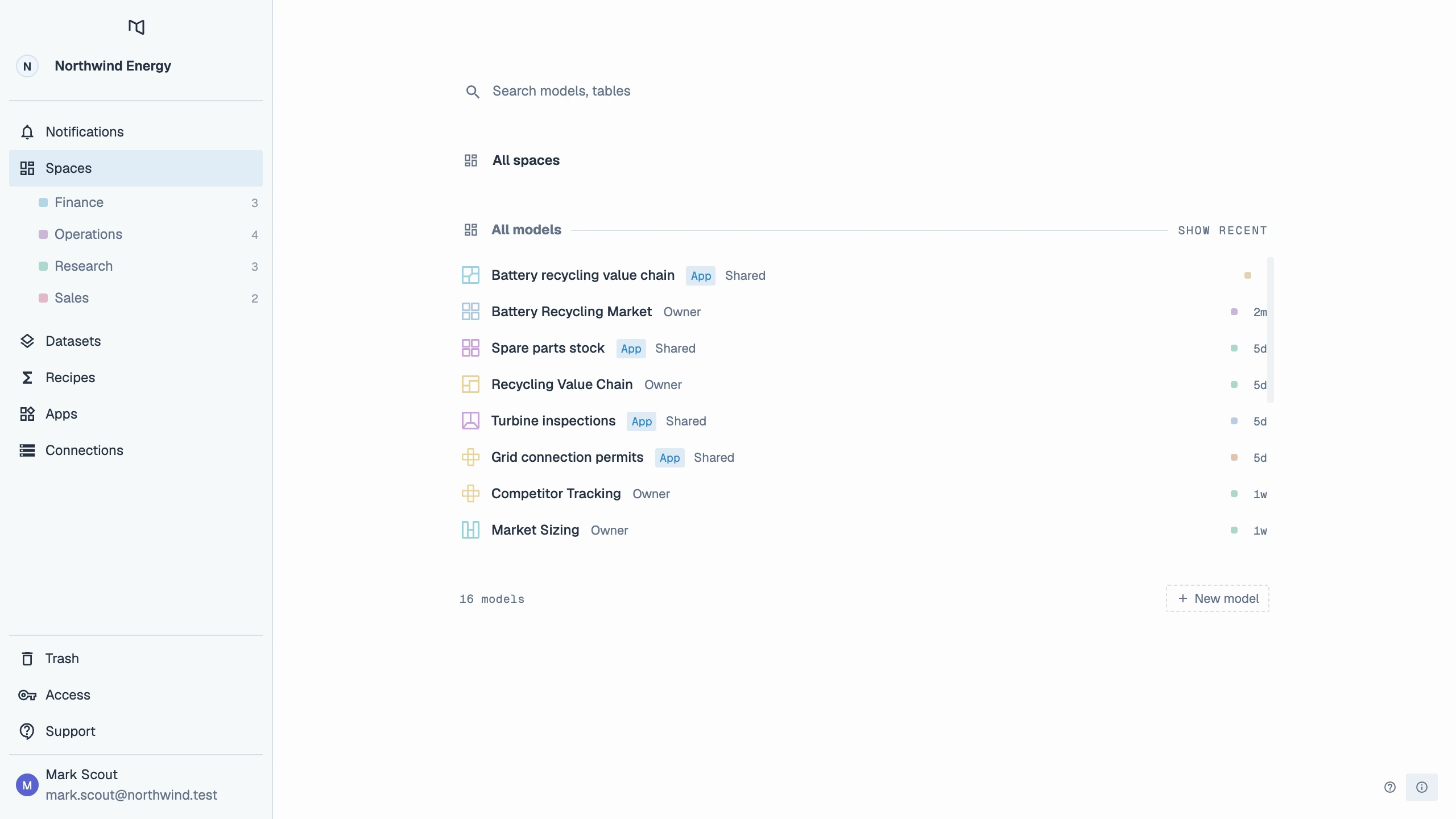
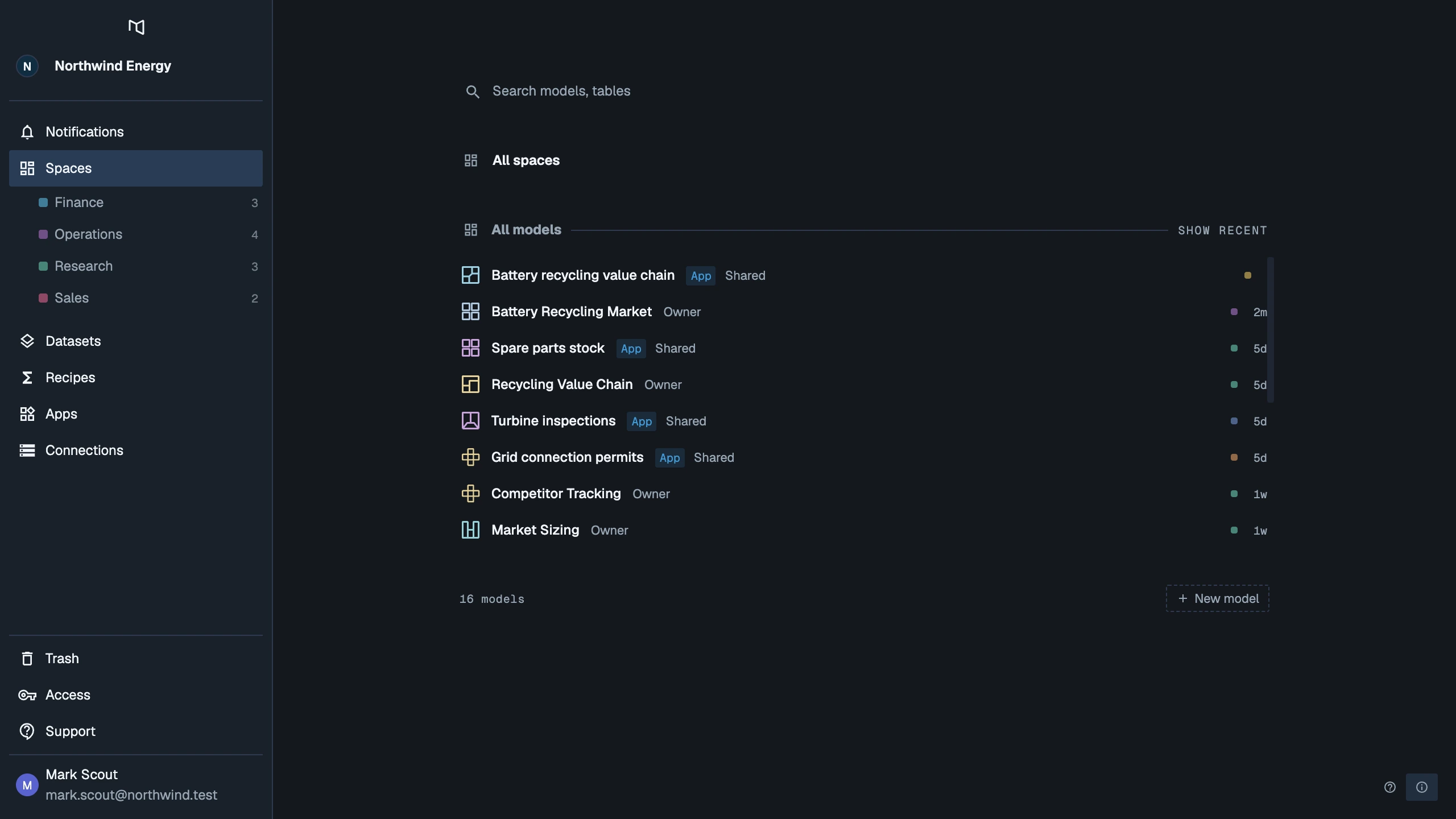
You land on Spaces, the overview of everything you can reach. A short Getting started tour runs the first time; you can replay it later with Take a tour at the bottom right.
Your account comes with a personal organization and a first space named after you, such as Robin's Space. A space is where access is granted: whatever you put in it, the people you add to it can reach. For now it holds only you.
2. Create a model
A model is a workspace of related tables on a shared canvas.
- Choose New model.
- Type a name, for example Sourcing.
- If the space chip says Choose a space, pick your space.
- Press Enter.
The model's canvas opens, empty.
3. Turn a file into a table
Drag countries.csv from your computer and drop it on the canvas. It becomes a table where you drop it, with its columns typed from the values it holds.
No file to hand? Choose New Table on the bar at the bottom of the canvas to start an empty one, or paste rows copied from a spreadsheet.
4. Edit it in place
Tables on the canvas behave like a spreadsheet, and every edit is saved as you go.
- Fix a cell. The sample spells Brasil the Portuguese way. Click the cell, type
Braziland press Enter. - Add a row. Drag the grip under the table down.
- Add a column. Drag the grip on the table's right edge, then double-click the new column's header to name it.
Anyone else working in the model sees each change the moment you make it, and every change becomes a new version of the table.
5. Link two tables
Drop suppliers.csv on the canvas too. Each supplier has a country, so the two tables are related through it. A link records that relationship.
- Click the Countries table to select it.
- Choose Add table link on the action bar at the bottom of the canvas.
- Pick Suppliers as the other table, then the column on each side: Country in both. Mycorr suggests likely matches.
- Add the pair.
Now choose Switch to graph view (⌘ ⇧ G, or Ctrl Shift G) to see your tables as a graph of what connects to what.
6. Save a version you can return to
Before a bigger change, take a checkpoint.
- Select the Countries table.
- Choose Checkpoints on the action bar.
- Choose New checkpoint and give it a name, such as First import.
You can restore it, or compare it with the current table, at any time. When the table is ready for others to rely on, choose Set as release: people who use the table outside this model read the release, not your work in progress. See Versions and releases.
7. Share it
Back on the canvas, click an empty spot so nothing is selected, and choose Manage Access on the action bar.
- Enter a teammate's email address.
- Pick Collaborator to let them edit, or Viewer to let them look.
- Confirm. They get a notification and an email with a link.
In your personal organization you can share with anyone by email. In any other organization, you share with its members. See Sharing and permissions for the full picture, including sharing a single table.
8. Ask an AI assistant about it
Mycorr's MCP server lets an assistant such as Claude, ChatGPT or Cursor read and build on your tables, under your permissions.
- Open Access at the foot of the sidebar.
- Under AI clients, pick your assistant and follow its steps. You sign in through the browser; there is no key to copy.
- Ask: "Which countries do our suppliers come from, by region?"
See MCP server for everything an assistant can do.