Models
A model is a workspace of related tables, laid out on a shared canvas. It is what you open to work: the place where you add tables, link them, and edit them alongside everyone else working in it, live.
Think of a model the way you would think of a database, or of a spreadsheet file with many tabs: Sales pipeline, Budget 2027, Wind farm operations. It holds the tables that belong together, and the links between them.
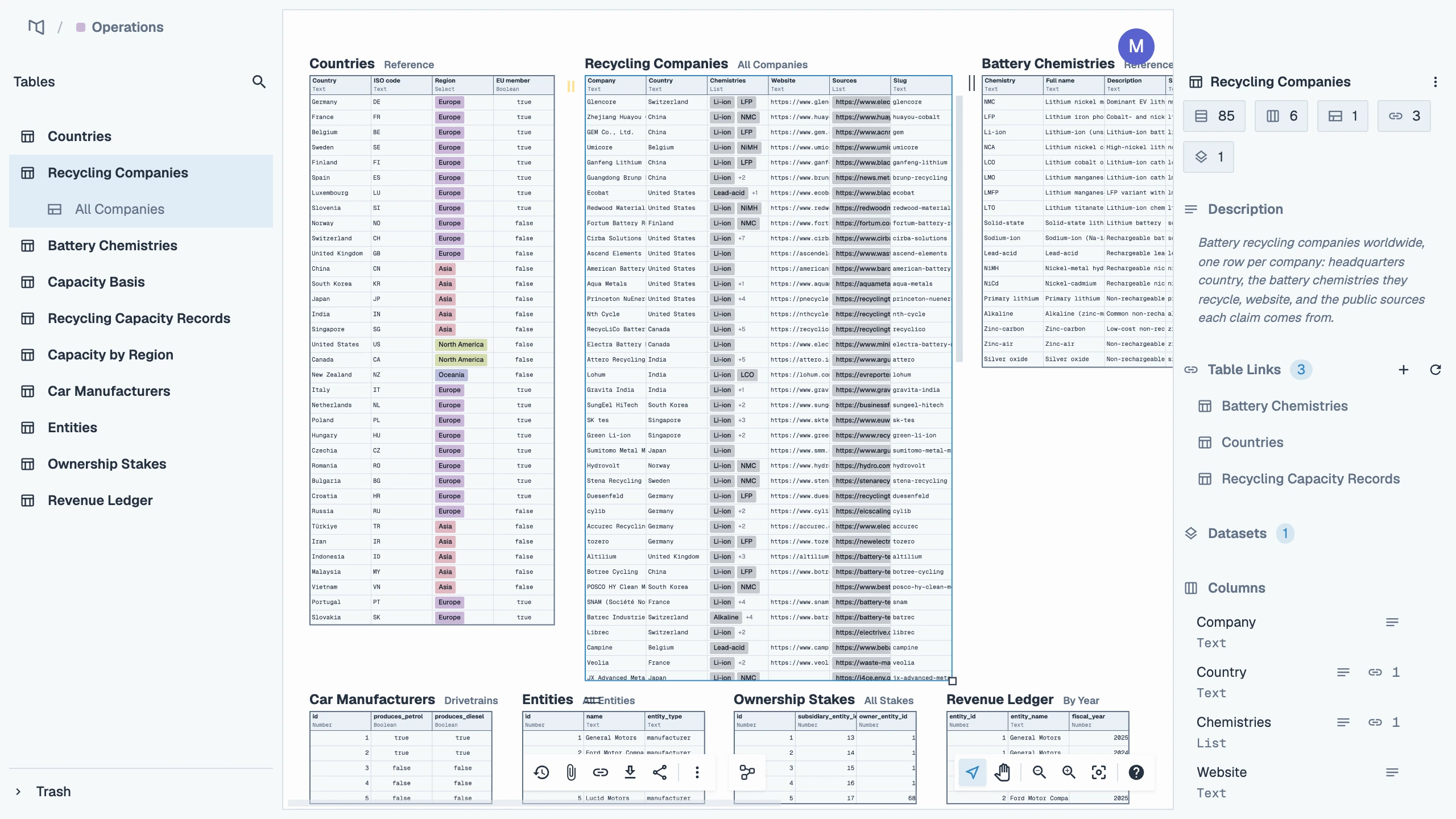
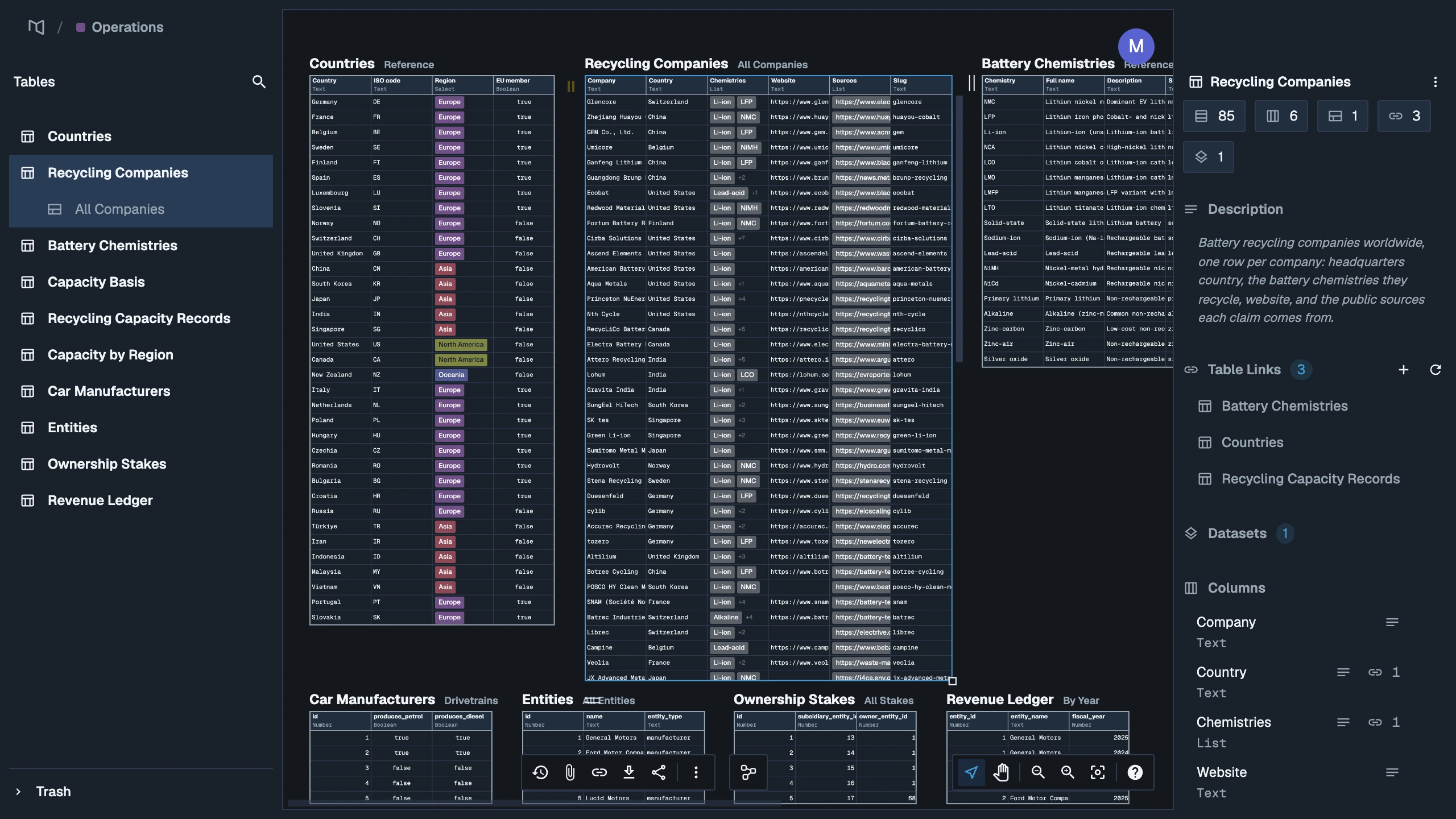
What a model holds
- Tables it owns. Tables created, uploaded or pasted in this model. Their home is here: this is where they are edited, versioned and released.
- Tables it imports. Tables from other models, read-only here, at the release their owners published. See Import a Mycorr table.
- Tables from connections. Tables read from Google Sheets, a database or a bucket, kept up to date by syncing. See Connections.
- Recipe results. Tables a recipe wrote, refreshed when you run it again.
- Links between any of these, and the views you arranged on the canvas.
Who owns a model
A model belongs to its space, and every manager of that space owns it. Owners decide who else gets in, and only owners can share the model directly, delete it, or move it to another space.
Everyone else reaches the model through their role on the space, or through a direct share:
| Role | Can |
|---|---|
| Owner (a manager of the space) | Everything below, plus import from connections, and share, move and delete the model |
| Collaborator | Edit the model and its tables, upload files and import Mycorr tables, create checkpoints and releases |
| Viewer | Open the model and read its tables, without changing anything |
Create a model
- On the overview, choose New model.
- Type a name.
- Pick the space it goes in. The chip reads Choose a space when you are not looking at one.
- Press Enter.
You need a space to create a model in: if the organization has none yet, New model says Create a space first — models live in spaces.
Work with a model
From the overview, each model row has a menu:
| Action | What it does |
|---|---|
| Open / Open in a new tab | Opens the model's canvas |
| Pin / Unpin | Keeps the model at the top of your overview |
| Rename | Changes the model's name for everyone |
| Change appearance | Picks the icon and color it shows with |
| Manage access | Shares the model directly; see Share a model |
| Move to space | Moves it to another space you manage |
| Copy model ID | Copies the ID that the API, SDK and MCP tools take |
| Delete | Moves it to the Trash for 30 days |
Inside the canvas, with nothing selected, the action bar offers New Table, Import, Manage Access and Arrange. See The canvas.
Move a model to another space
- Open the model's menu on the overview and choose Move to space.
- Pick the destination under Move to. It lists Spaces you manage, excluding sealed spaces.
You must be a manager of both spaces, and both must be in the same organization. The model's access follows its new space: people who reached it through the old space lose it, and the new space's members gain it. A model cannot move into or out of a sealed space, because that would carry data through the wall.
Delete a model
- Open the model's menu and choose Delete.
- The Deleting Model dialog groups the model's tables by how much others depend on them:
- Critical: tables other people import into their models.
- Moderate: tables imported into your own models.
- Low: tables nobody imports.
- To keep a table alive, move it into another model you own before deleting, using the transfer section of the dialog.
- Confirm.
The model goes to the Trash with its tables, and can be restored whole for 30 days.